Video Upscaling Is Not the Same as MiniMax H3 2K Regeneration
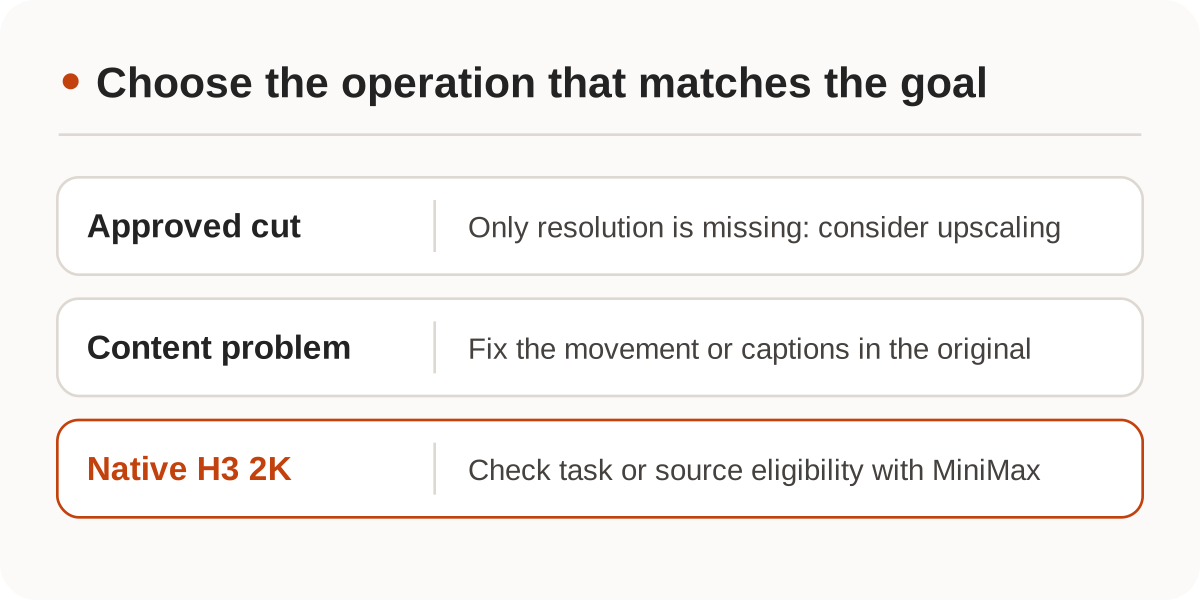
Use upscaling when the cut is final. H3 2K regeneration needs eligible footage and generation inputs; check dimensions, frame count, and audio first.

If the approved cut is already in 768P and all you need is a higher delivery resolution, try upscaling. Fix incorrect motion, a bad splice or misspelled captions in the source instead. MiniMax H3 2K regeneration is a different operation with rules for both the source clip and the original generation inputs. It is not an upscale button for arbitrary 768P files.
What can you do with only the approved cut?
Nbility Auto-HD takes a video_url the processor can fetch and supports 720p, 1080p, 2k, and 4k outputs. Check the extension in the path itself: in.mp4?signature=… has an MP4 extension, but download?name=in.mp4 does not. Also check access and expiry. Your own browser may be able to play a file that the processor cannot fetch. Keep a downloaded and verified source copy instead of relying on a temporary link.
For a vertical deliverable, settle the crop and caption safe area first. A resolution setting cannot choose how to reframe a landscape shot or fix the spelling on a title card.
Why does H3 2K regeneration need more than a clip?
MiniMax's official Video Regeneration V2 API uses POST /v2/video_regeneration and takes 2K as the target resolution. Choose exactly one source method:
| Official input mode | What you need |
|---|---|
source_task_id | An allowlisted official account and its own successful generation job within the seven-day query window |
content with one base_video | A source video that meets H3 768P output specs, plus the final prompt actually sent to the model and the same reference assets |
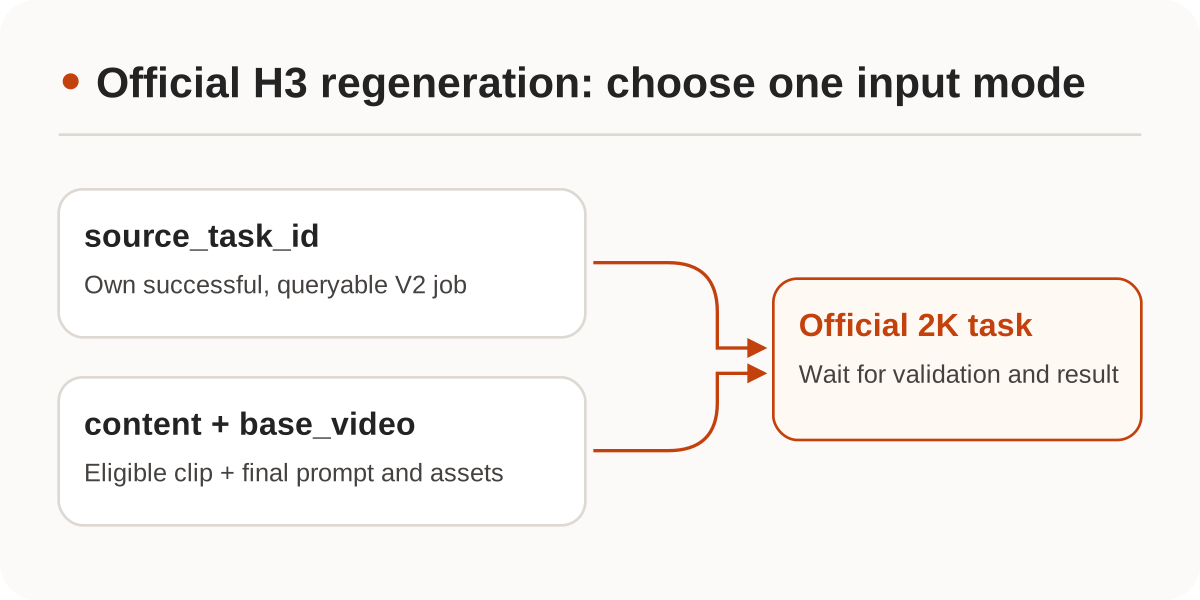
The source video item has type: "video_url" and role: "base_video". If you enhanced the H3 prompt before generation, the first draft is not necessarily the text the model received. This mode also requires an audio track in the source. Setting generate_audio: false affects output, not that input requirement. The Nbility H3 endpoint does not offer this regeneration operation, and a Nbility job ID is not an official MiniMax job ID.
What can you check locally before submitting?
Use ffprobe to read dimensions, average frame rate, the number of frames read, stream types, and duration. -count_frames reads the file; a filename or a 768P badge is not a substitute for those measurements.
ffprobe -v error -count_frames \
  -show_entries 'stream=codec_type,width,height,avg_frame_rate,nb_read_frames:format=duration' \
  -of json ./source.mp4
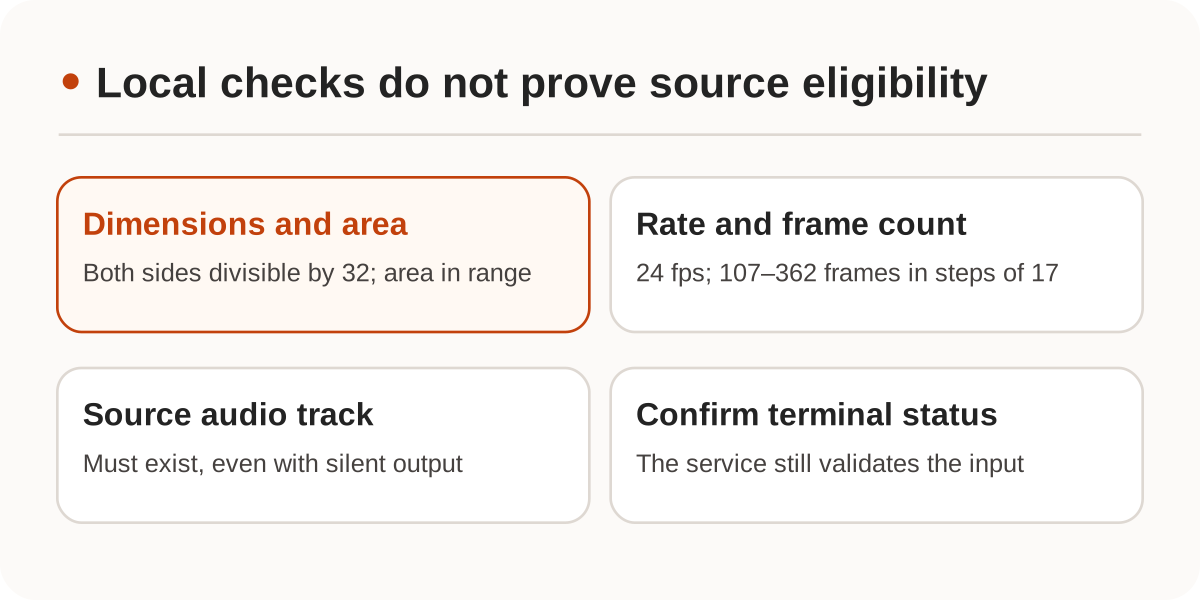
The documented base_video specs include 24 fps, dimensions divisible by 32, an area from 589,824 to 1,032,192 pixels, and a frame count from 107 to 362 in steps of 17 (107, 124, 141, and so on). A synthetic 1344×768 clip at 24 fps with 124 frames and an audio track can pass these listed checks without proving it is eligible H3 footage or that its prompt and references match. Keep checking after submission: a task ID arrives before asynchronous media validation.
Compare the same frame regions for product edges, fine text, and hair. Watch motion for flicker and check audio sync. Choose the version that preserves the details that matter, not just the one labelled with a higher resolution. We checked both services' docs on November 20, 2026 and exercised the local command on synthetic media. We did not submit an upscale or regeneration task or compare service output quality.