Show an Orca agent exactly where a button covers an error message
Orca Design Mode can identify a DOM element or mark up a screenshot. Choose the evidence that captures the problem and reproduce the same viewport and page state after the edit.
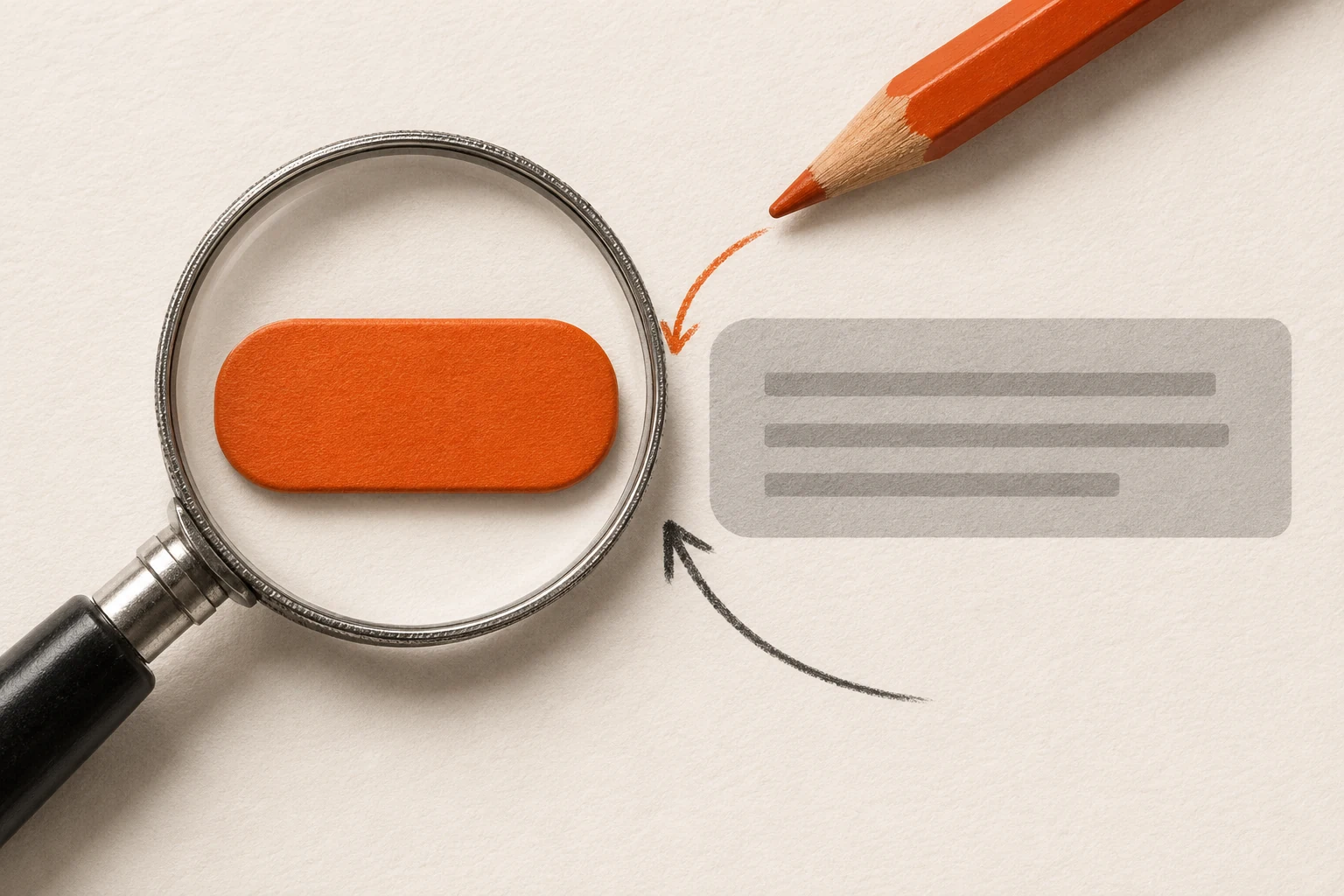
“Move that button” makes sense while you're pointing at a screen. It loses its meaning in a chat. In Orca's Design Mode, grab an element when its identity matters; mark up a screenshot when the problem is the relationship between two things. A button overlapping an error message is a case where the second choice tells the better story.
When is an element more useful than a picture?
For a request such as “change the type size on this Save button,” open the right workspace preview, use Grab page element, and confirm the highlight is on the button rather than its container. The versioned Design Mode guide lists the available evidence: nearby HTML, computed styles, a cropped screenshot and, when a development source map is available, a source file and line. A missing source location is a reason to investigate, not to invent a line number.
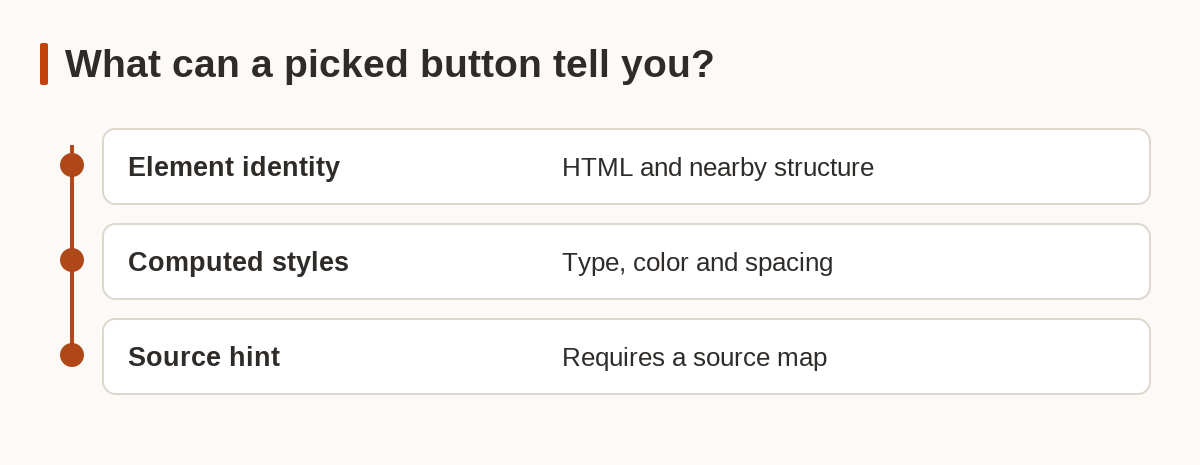
What does drawing on a screenshot add?
For an overlap, capture both the control and the obscured message. Reproduce the narrow viewport and expand the error first. Use Draw on screenshot to mark the button edge and the clipped line. An actionable note is: “At 360 px wide with validation visible, Save covers the final line. Keep the whole message readable and the button clickable.” The width is an example acceptance condition, not an Orca limit.
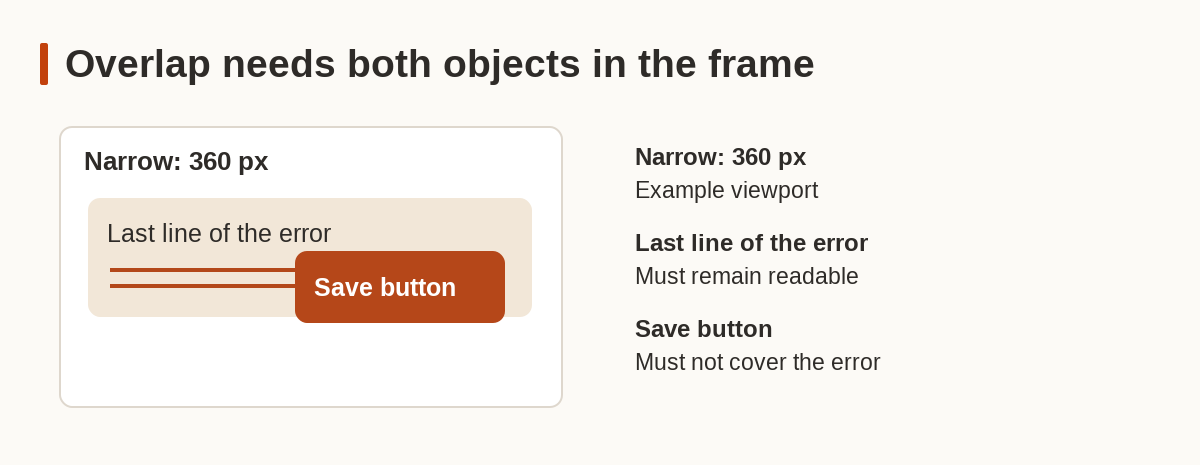
The v1.4.279 release lets you move the annotation palette away from the region you want to discuss. The release's toolbar implementation names both actions. Before sending, check the capture bounds and target agent; a small repro page usually conveys more than a full page of unrelated form data.
Compare the same state after the change
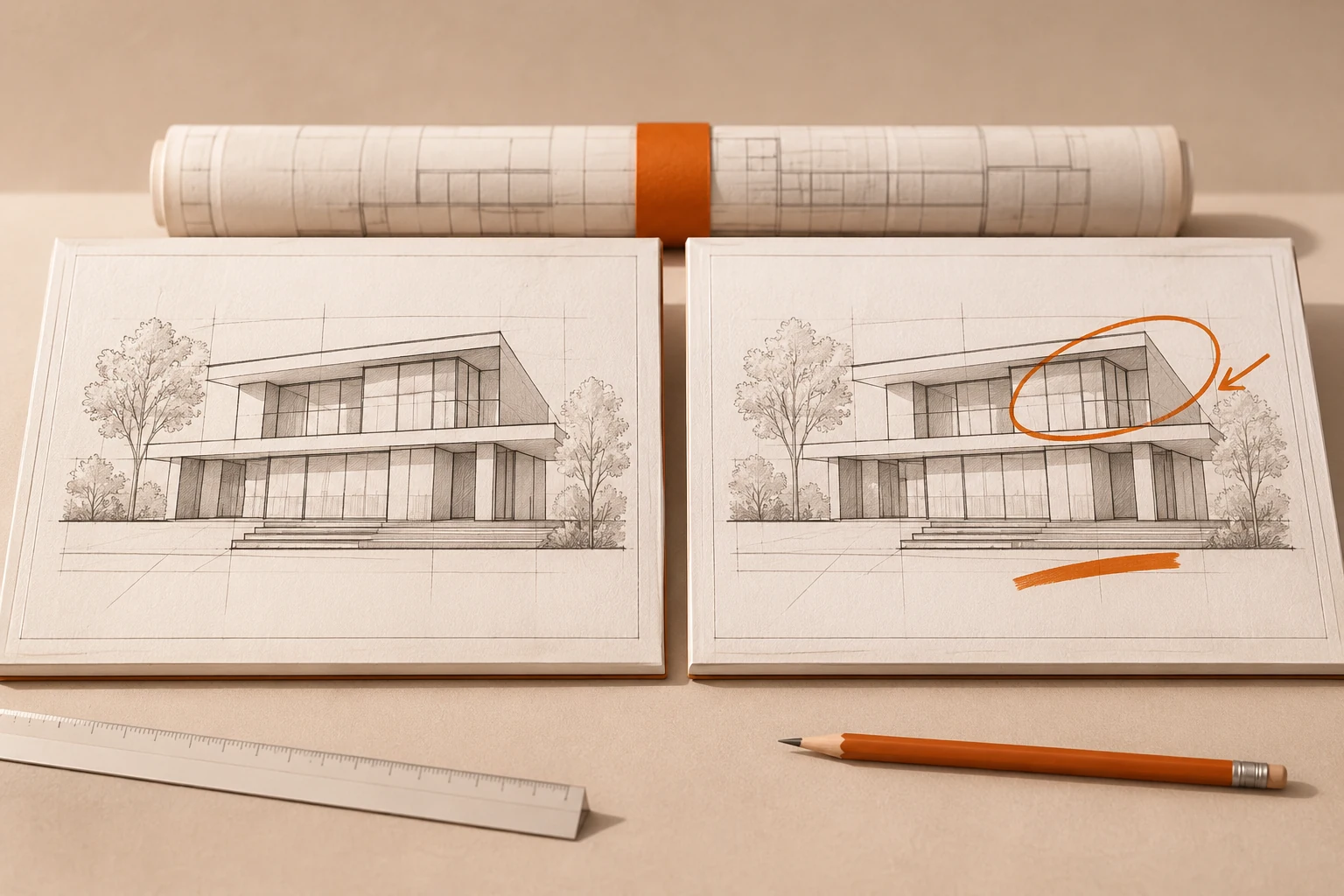
Set the same width, data and error state. Read the last line and try the button. Then return to a wide layout to check the fix didn't break it. Two screenshots taken at different widths can't establish whether the code changed the overlap or the browser simply wrapped text differently.
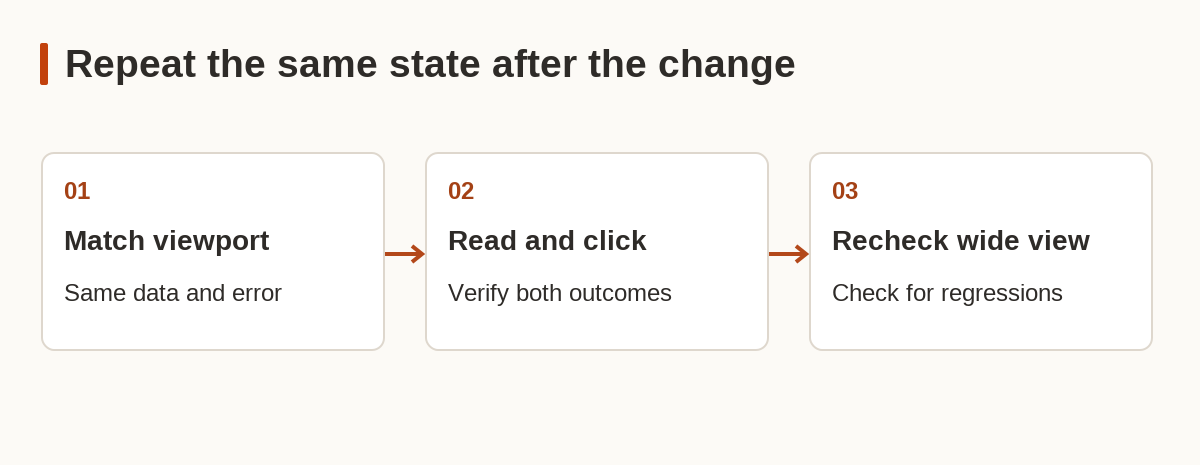
Review the resulting code with line-anchored diff notes. If nothing on screen changes, verify which worktree the preview uses and, for remote work, where its service runs. The example is a review exercise, not a before-and-after screenshot of Orca fixing a live site.