Send an Orca agent one review with two line notes
Use Annotate AI Diff to anchor feedback, pick a worktree agent and verify its revision. A zero-value display bug shows what to write on the implementation and test lines.

A change renders a zero amount as “not supplied.” Telling the agent to “check the amount logic” leaves it to guess which line and which input you meant. In Orca's Annotate AI Diff, pin the expected behavior to the changed expression, flag the missing case next to the test, then deliver both notes to the same agent.
Are you reviewing the right change?
Check the workspace and comparison ref first. Orca's diff viewer defaults to the worktree's start-from ref, but can compare with another branch or commit. Comparing a stacked feature directly to main can bring its parent's changes into your review. The v1.4.279 release moved Graph into Changes and rearranged the PR and file-list controls. You don't need a PR to give a worktree agent feedback.
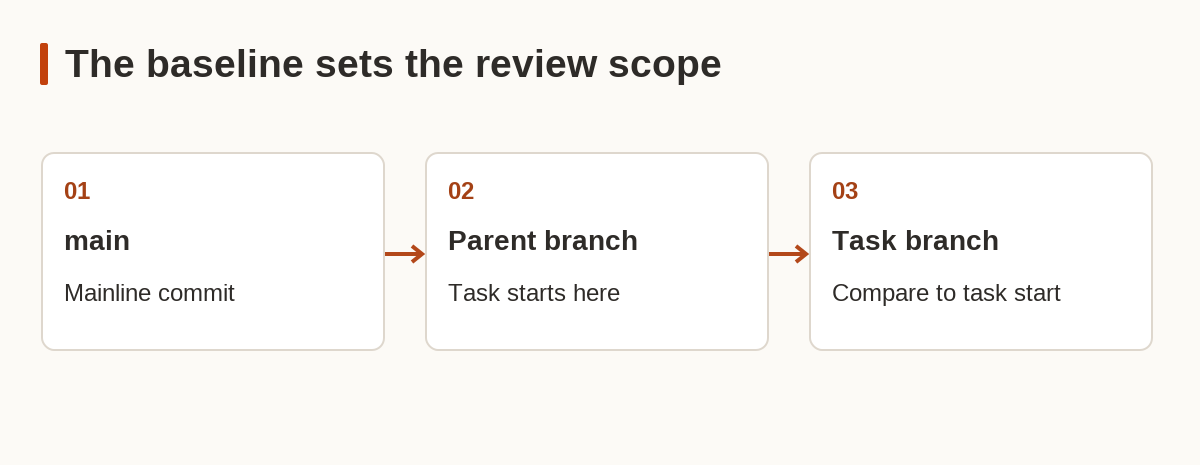
Give each note an observable outcome
Suppose the changed expression is amount || '—'. On that line, write: “A numeric zero must render as 0. Use the dash only when the amount is missing.” On the changed test, write: “Cover zero and missing independently; their displays must differ.” A reviewer can now tell whether any proposed implementation meets the requirement.
The versioned annotation guide describes hovering the diff line and using the gutter +. Save both notes, choose Send to agent, then pick the intended recipient from Send notes to. Saving a note, delivering it and posting a public GitHub review are different actions.
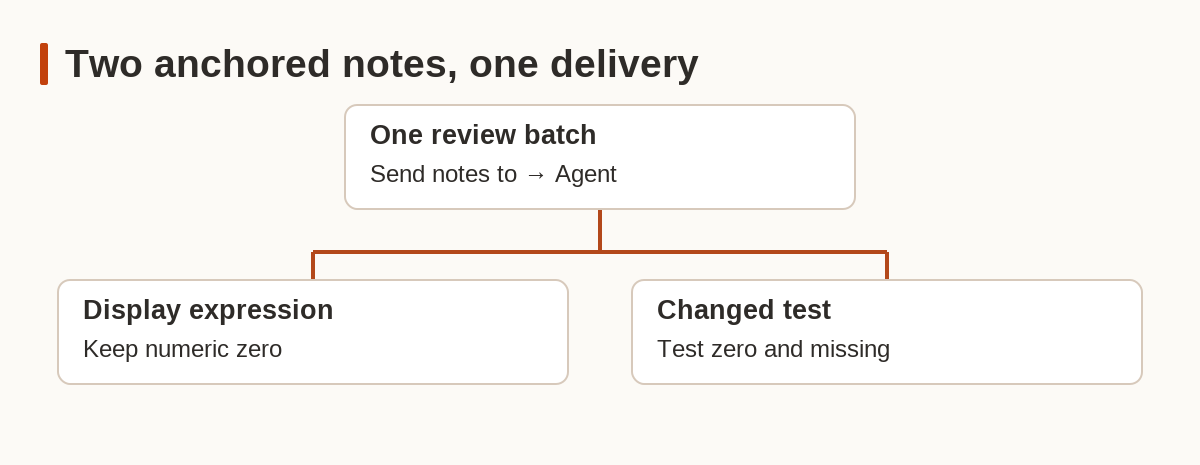
What should you verify before resolving the thread?
Read the new diff and check three cases: 0 → 0, missing → —, and 12 → 12. The ordinary value catches a patch that only handles the two edge cases. Resolve the notes whose criteria now hold; unresolved notes can be included when you send another batch. A reply claiming “fixed” isn't the test result.
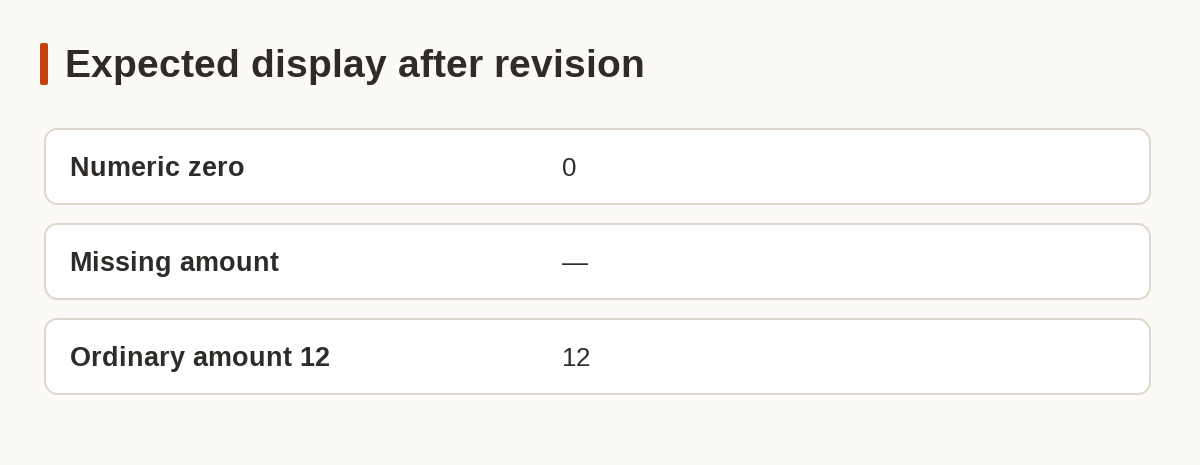
When the failure is visual, annotate the rendered page instead of guessing which CSS line caused it. If you see unrelated edits, inspect the worktree and its starting point. If a different agent responds, trace which session you started.