T3 Code Stuck on Preparing Workspace: Check Scripts, Shells, and Saved Actions
Diagnose T3 Code workspace preparation by checking Git creation, setup commands, completion signals, and saved Actions. Includes a read-only worktree diagnostic.
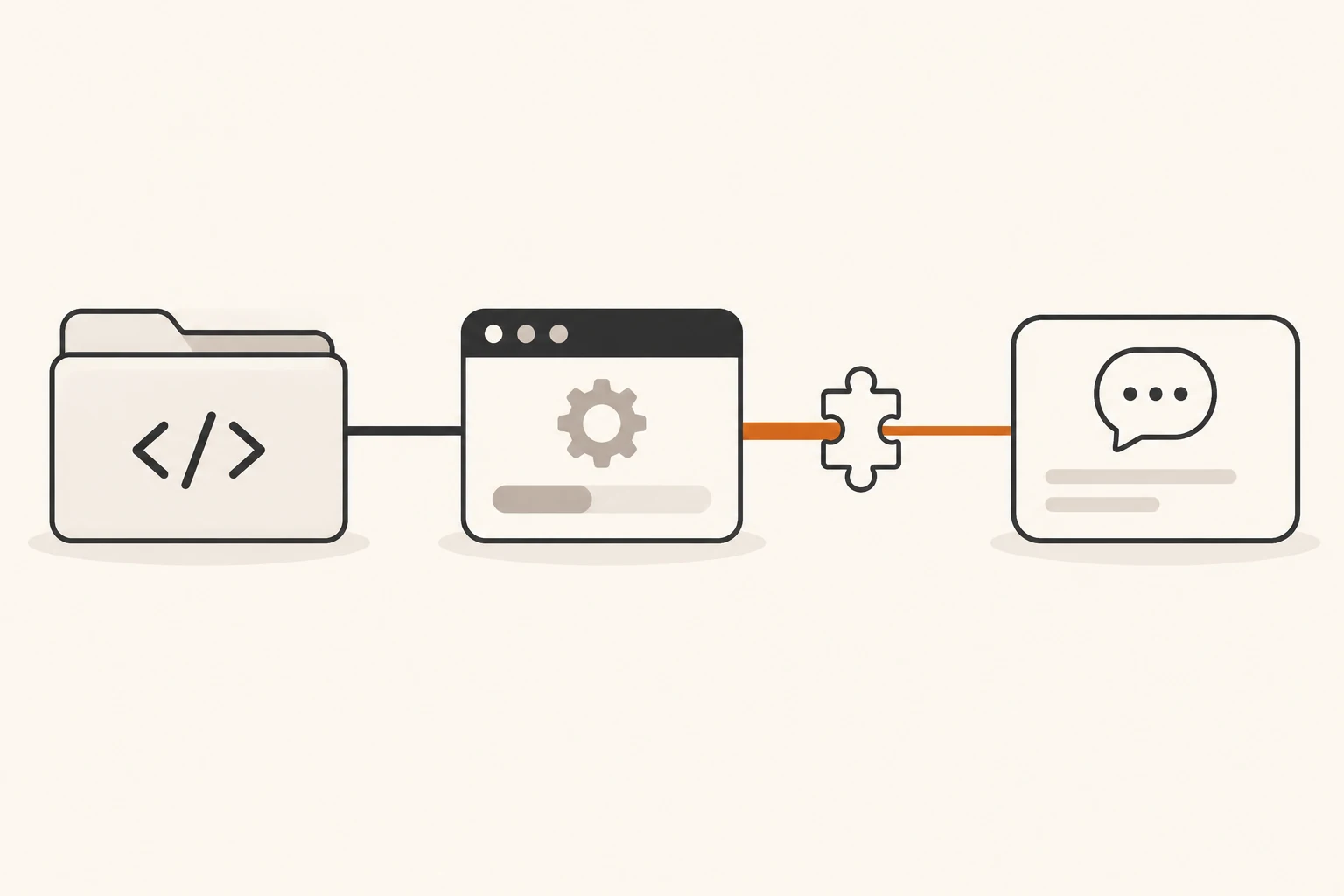
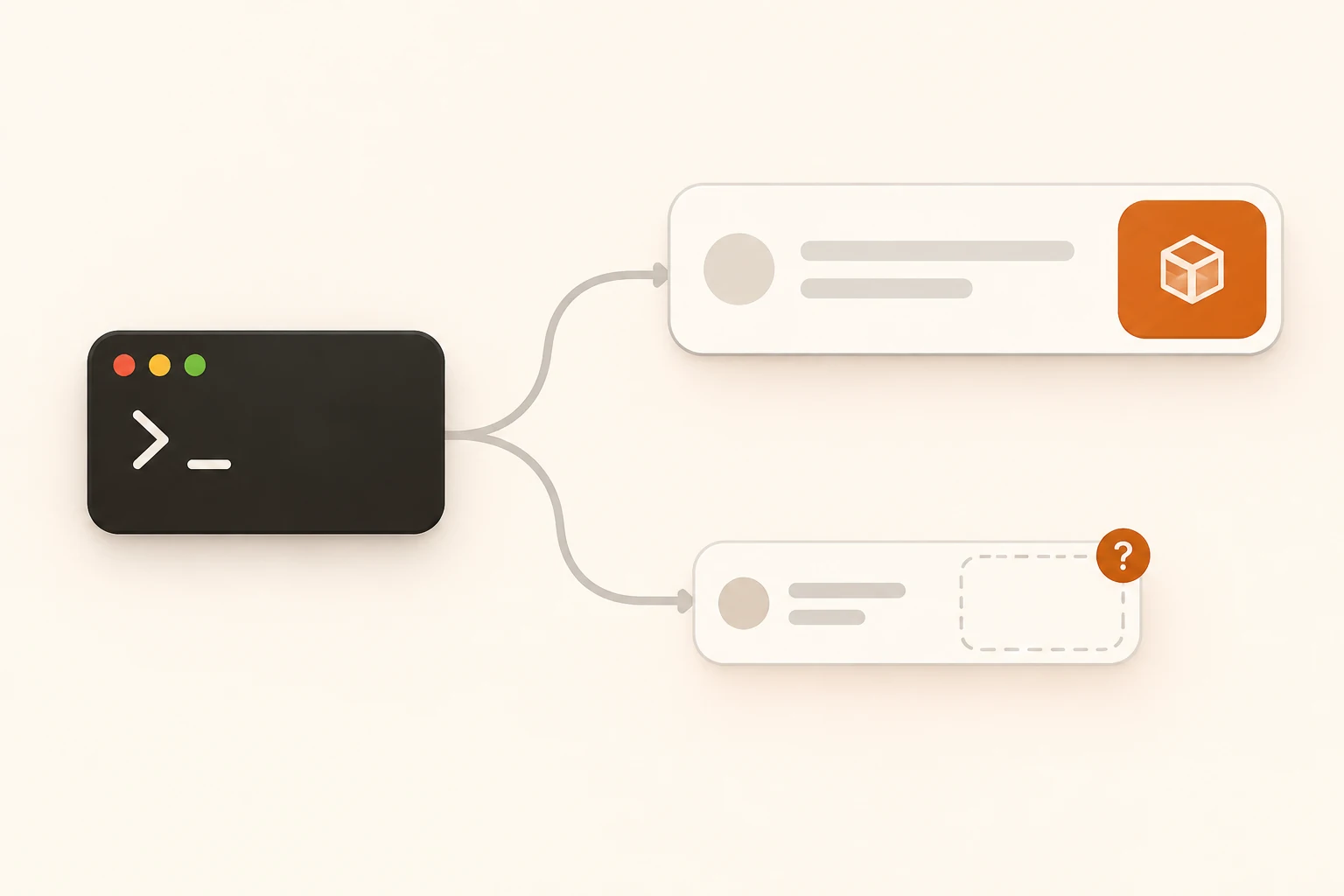
A new T3 Code thread stays on Preparing workspace and the agent never starts. Open its setup terminal first. Is it downloading dependencies, waiting for input, or already back at a prompt after an error? The same loading state can cover different stages.
Find the command actually running and its output, then check the directory, shell, and saved Action. Editing the repository's t3.json also requires checking whether the affected project and environment use the updated Action.
This guide uses the T3 Code v0.1.7 stable release, checked on November 9, 2026, when latest stable still pointed to that version. It includes a read-only diagnostic Action and distinguishes proposed fixes from verified release behavior.
Is Git Creating the Workspace, or Is Setup Running?
| Evidence | Inspect first | Next step |
|---|---|---|
git worktree add, existing branch, or checkout error | Target branch, existing worktrees, starting commit | Check Git and directories before changing models |
| Setup terminal keeps printing install or download output | Package source, network, interactive prompts | Find the latest useful output and actual running process |
| Shell reports a syntax error while T3 keeps waiting | Command syntax and completion reporting | Preserve the original error and fix parsing first |
| Repository file changed, but the old command runs | Action saved for this project and environment | Compare and update the saved command |
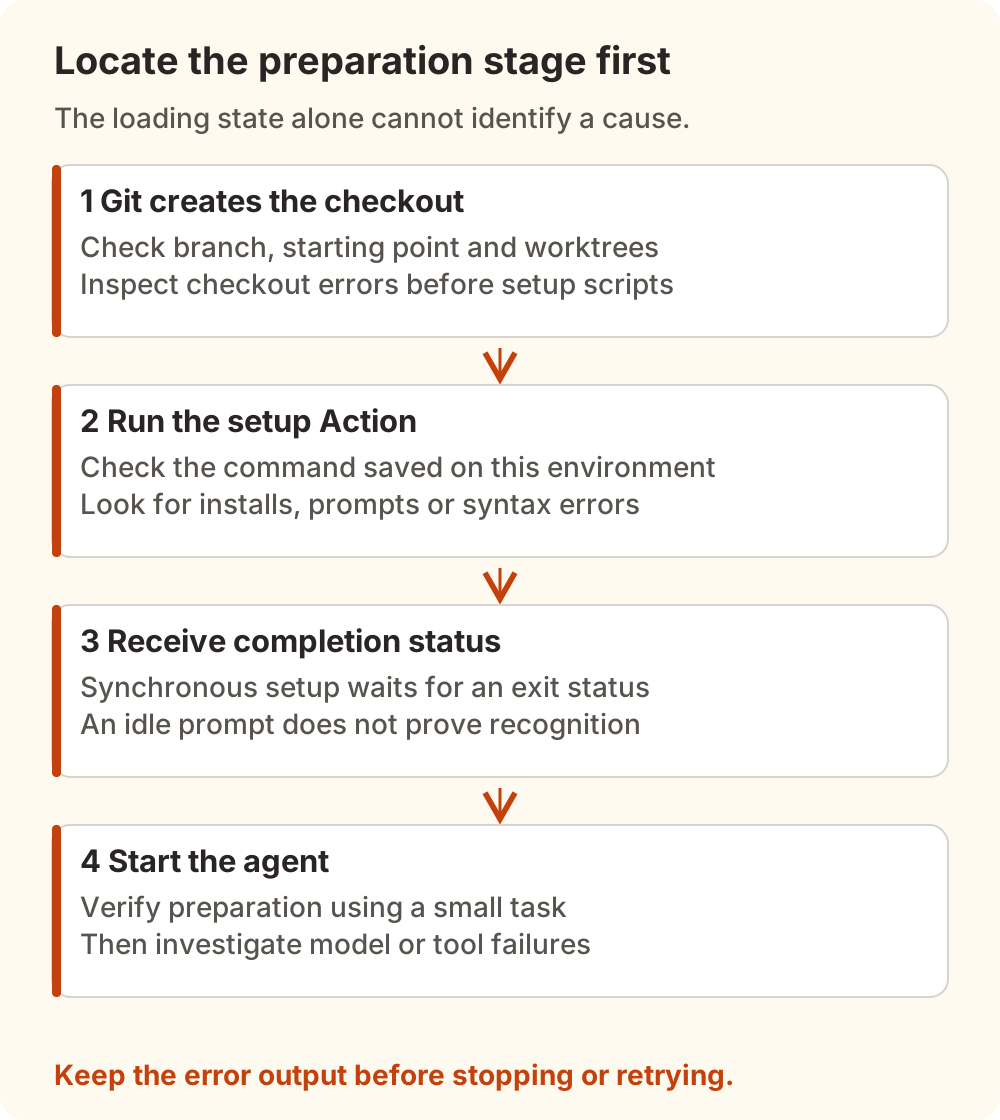
If you have not confirmed which checkout the thread uses, start with the T3 Code thread and worktree checks. This article addresses preparation after workspace separation.
Not every report concerns a shell. Issue #26577 describes a nightly build that reported a branch conflict unusually late. The author gives no deterministic reproduction and credits an AI agent analyzing historical records. It does not establish a universal cause, but it shows why a loading indicator alone is insufficient to diagnose a slow install or broken shell.
Command Parsing and Completion Reporting Are Separate Checks
Issue #32556 gives a concrete example: T3 Code v0.1.7 on macOS with fish 4.3.2, using Bash-style syntax such as ${VAR:-fallback} in a setup Action. The reporter says the terminal displayed a syntax error while workspace preparation kept waiting.
Two conditions matter:
- The project command must parse in the actual shell. Bash expansion is not interchangeable with fish or Nushell syntax. A command working in your usual terminal does not establish the interpreter or environment T3 starts.
- Synchronous setup must report completion back to T3. The v0.1.7 setup runner wraps the command according to its shell and reads a completion marker containing an exit code. An idle-looking terminal does not establish that T3 recognized completion after a parsing failure.
Issue #24423 concerns Nushell. The author corrected an earlier description of an inevitable parse error: in the tested environment, a command could run while the completion marker contained the literal $? rather than a numeric status. A November 2 reply describes a local patch and verification. The issue remained open when checked; that discussion alone cannot establish a shipped stable fix.
Changing a project command to bash -c '...' or sh ... can specify the child command's interpreter. It does not necessarily change the completion wrapper T3 generates in the outer terminal. In particular, a script running independently is insufficient evidence that Nushell-related thread preparation is fixed.
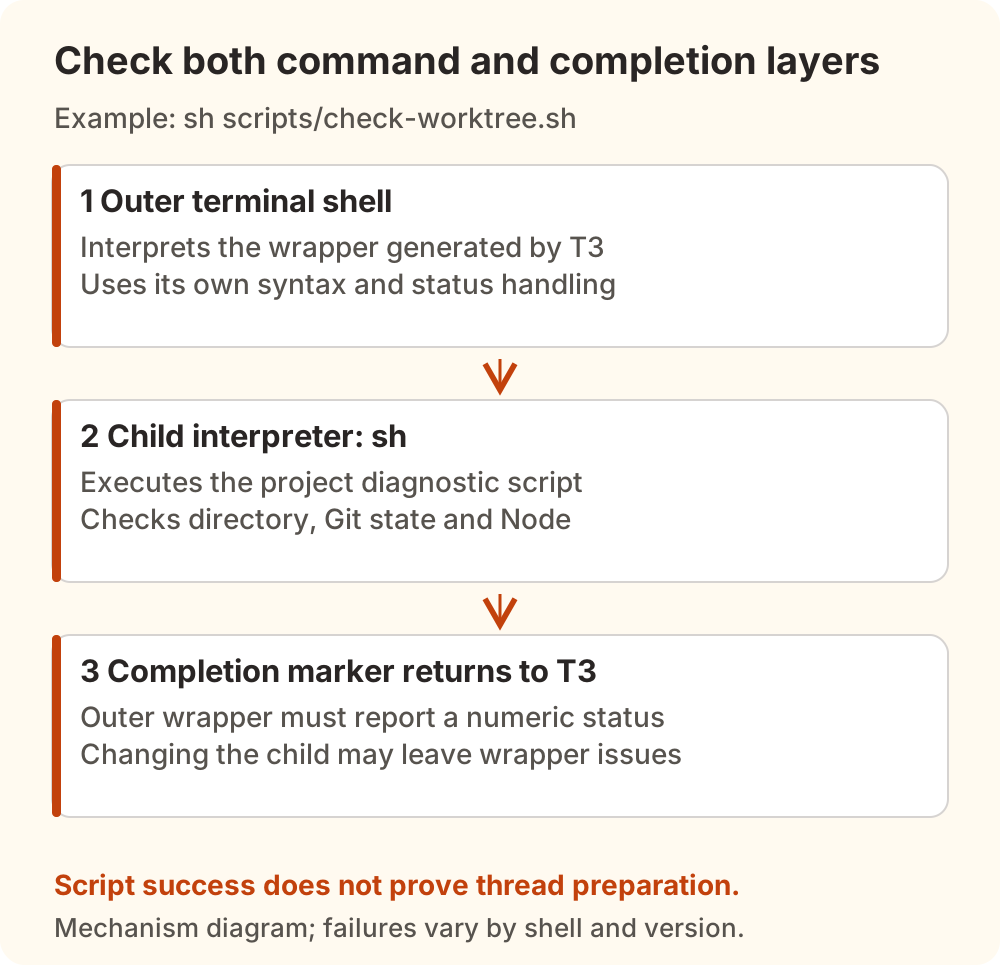
We inspected the stable release's wrapper selection and status text, and ran local success and failure examples for its POSIX wrapper. We did not install fish or Nushell or reproduce these complete failures through the T3 client.
Why an Edited t3.json Can Still Leave an Old Command Running
The project settings documentation places Actions under project settings and supports importing them from t3.json. Settings also have project and environment scope. Selecting several environments can apply edits to multiple machines; offline environments retain their existing values.
Select the affected project and environment, then inspect the actual Action in Settings → Projects:
- Does its command match the corresponding
scriptsentry in the currentt3.json? - Is
runOnWorktreeCreateenabled for the intended setup entry? - Is synchronous waiting configured as intended? Is an older setup Action still present?
The reporter in #32556 says the imported Action retained its old command after the repository file changed. Their workaround was to re-import or edit the saved Action. We did not independently reproduce that drift. Compare the contents first; if re-importing, preserve existing customizations and inspect the resulting list. Import support does not establish continuous synchronization.
The stable script-selection implementation also chooses the first script with runOnWorktreeCreate enabled. Keep one clear setup entry during diagnosis and organize required sequential steps inside it. Do not assume several setup Actions run in sequence.
For settings declared in t3.json, such as the default thread workspace, the documented order is project override, environment setting, repository file, then built-in default. Actions additionally require inspecting the saved list. That precedence alone cannot tell you which command is actually running.
Start With a Read-Only Diagnostic Action
This example targets macOS or Linux with Git, Node, and sh available. It installs no dependencies and changes no project files. It prints the current directory, branch, file status, and Node location. Passing it establishes only that these checks complete; it does not prepare application dependencies.
Add scripts/check-worktree.sh to an example repository:
#!/bin/sh
set -eu

printf 'setup cwd: %s\n' "$(pwd)"
git rev-parse --show-toplevel
git branch --show-current
git status --short
command -v node
node --version
Merge this scripts entry into t3.json, preserving other project settings:
{
  "$schema": "https://t3.codes/schema/t3.json",
  "scripts": [
    {
      "name": "Check workspace",
      "command": "sh scripts/check-worktree.sh",
      "icon": "configure",
      "runOnWorktreeCreate": true,
      "async": false
    }
  ]
}
Include the script and configuration in the commit used as the starting point. A new worktree does not automatically receive an uncommitted, untracked script from the main checkout. For dependent work, confirm that the starting branch contains the required unpublished commits.
Inspect or import the Action for the affected project and environment, then first run it independently in the intended directory:
sh scripts/check-worktree.sh
Check that it prints the expected worktree path, task branch, and Node version, including when paths contain spaces. A missing script points you back to the starting commit and directory. A missing Node binary requires fixing the tools available to that terminal on that machine.
After the independent check passes, use a small task to test whether T3 completes preparation and starts the agent. If the script runs alone but T3 still waits, retain both outputs and investigate the outer shell and completion reporting before switching models.
Which Commands Belong in Synchronous Setup?
The v0.1.7 configuration definition says setup scripts default to async: true, allowing the agent to start while they run. Setting async: false holds the agent until the script exits.
The diagnostic explicitly uses false so its checks finish first. If the real project needs dependencies, generated files, or migrations ready before agent startup, the setup command needs a clear success or failure exit. A development server that runs continuously does not belong in synchronous setup: waiting for it to exit can be exactly what the configuration requests.
Changing to async: true merely to remove a loading state can let the agent start before dependencies are ready. Choose it according to actual ordering requirements. For where durable rules and executable procedures belong, see AGENTS.md and Skills.
Keep Enough Evidence Before Retrying
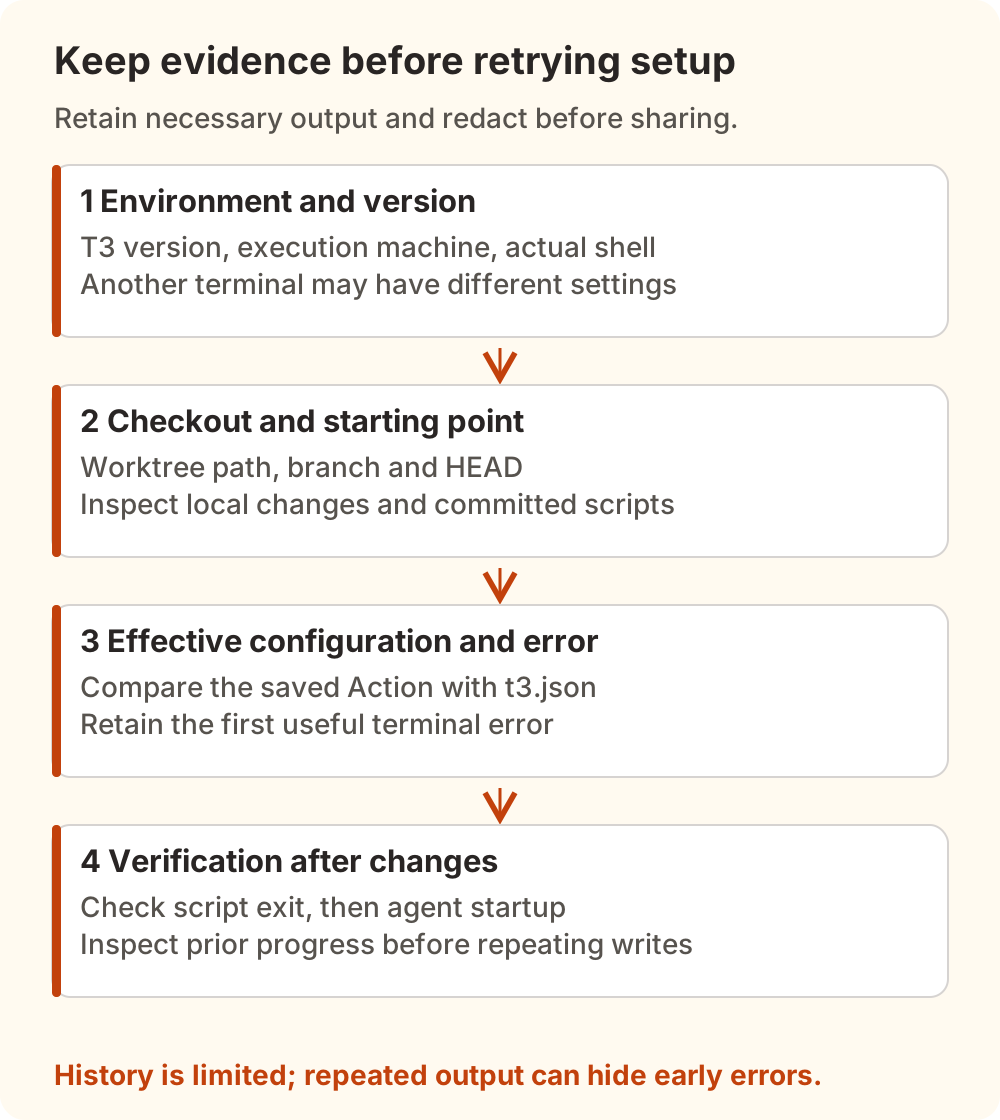
Before stopping the wait or trying again, preserve:
- T3 version, execution machine, and actual terminal shell. Another terminal's
$SHELLvalue is insufficient to establish the interpreter involved. - Worktree path, branch, HEAD, and
git status --short, checking for changes of unclear ownership. - The Action saved on that environment, its repository-file counterpart, and the complete relevant terminal error.
- Whether the command never started, is still running, already failed, or finished while the UI stayed put.
The terminal history documentation specifies up to 5,000 lines and 8 MiB retained on the environment server, removing older output when either limit is reached. Long retries can displace the first useful error. Save necessary excerpts promptly and remove keys, private paths, and download links before sharing.
If setup performs migrations, copies, or other writes, establish how far the previous run got before repeating it. Avoid deleting the worktree, restoring every file, or having multiple tasks prepare the same directory simultaneously. Verify the directory, setup exit, and agent startup on a small task first.
If preparation completes and a model API error follows, use connection basics to check the actual protocol and endpoint. For charges or missing records, follow T3 Code usage reconciliation. Preparing workspace alone cannot establish whether model calls or charges have occurred.