T3 Code Revert Options: Keep Changes or Restore Files?
Understand Edit from here in T3 Code v0.1.7: conversation rewind, file checkpoints, isolated-worktree errors, and the checks to make before restoring untracked or manually edited files.
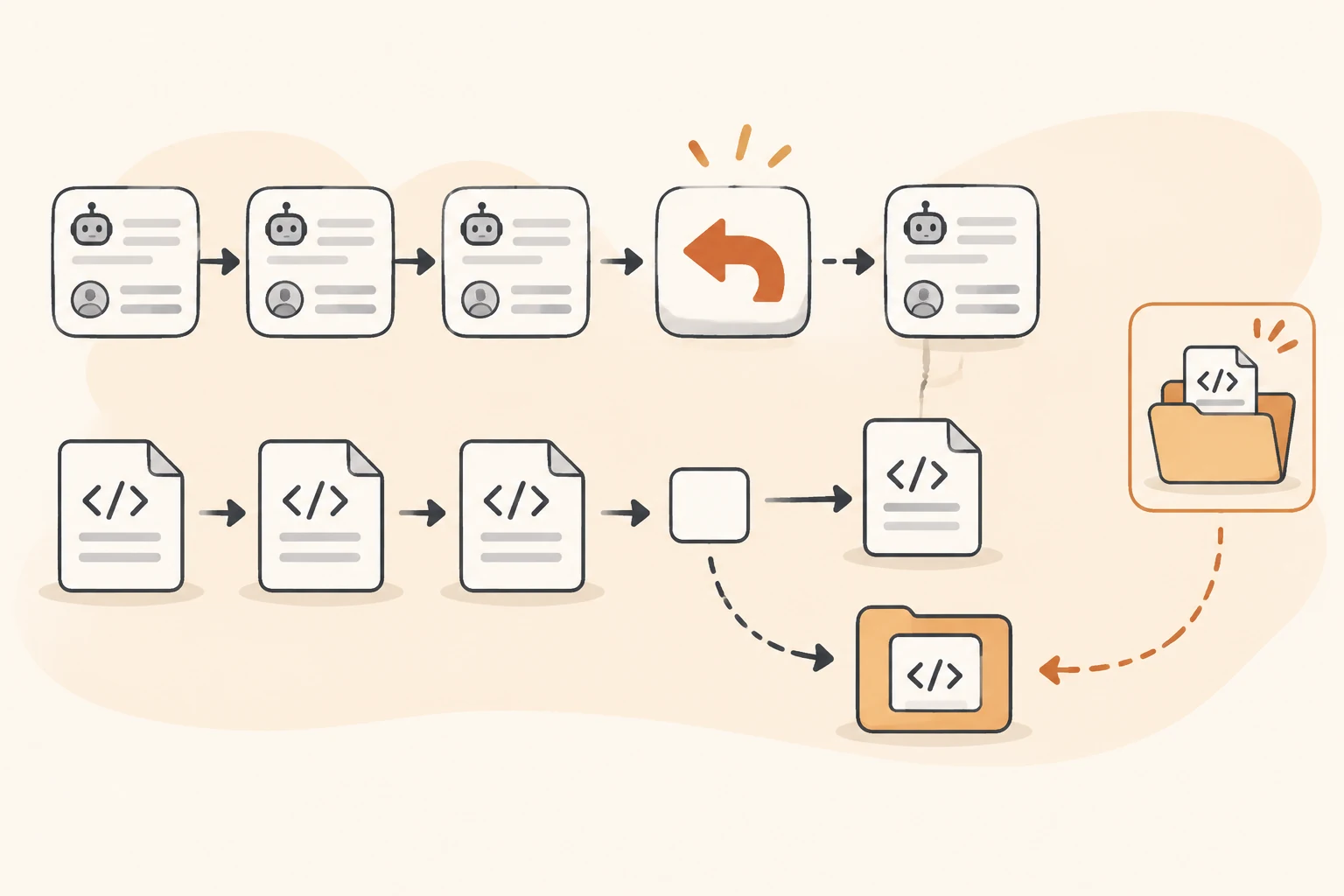
An agent takes your code in the wrong direction. You want to go back to an earlier instruction and try again, but T3 Code's Edit from here offers two choices: Revert and keep changes and Revert files too.
Choose the first to revise the conversation while keeping today's files. Consider the second only when you also want the workspace restored to before that message. File restoration can undo your own edits made after the checkpoint. It does not selectively remove only the lines the agent wrote. Save the work you need before choosing the target.
This guide uses T3 Code v0.1.7, returned as the latest stable release on November 9, 2026. We checked its documentation, restore implementation, recent reports, and read-only commands in a temporary Git repository. We did not restore a real project through T3 or reproduce the complete client failures discussed below.
Decide what should go back and what should stay
According to the composer documentation, Edit from here beneath a sent message on web or desktop rewinds to before that message. The selected message and subsequent conversation leave the active thread and provider history. The original prompt and attachments return to the composer for editing and resending. The provider must support rewind.
| Intended outcome | Appropriate action | What to verify afterward |
|---|---|---|
| Rewrite an instruction while retaining useful code | Revert and keep changes | Files stay as they are; explain their current state in the next prompt |
| Discard the attempt and restore earlier files | Revert files too, when its conditions are met | Manual edits, new files, and the target checkpoint match your intent |
| Undo one file or a few lines | Make a targeted change or use the project's Git recovery procedure | Other files and accepted changes remain intact |
| Undo a push, deployment, or external operation | Handle it in the system where it happened | Rewinding chat or local files does not reverse that action |
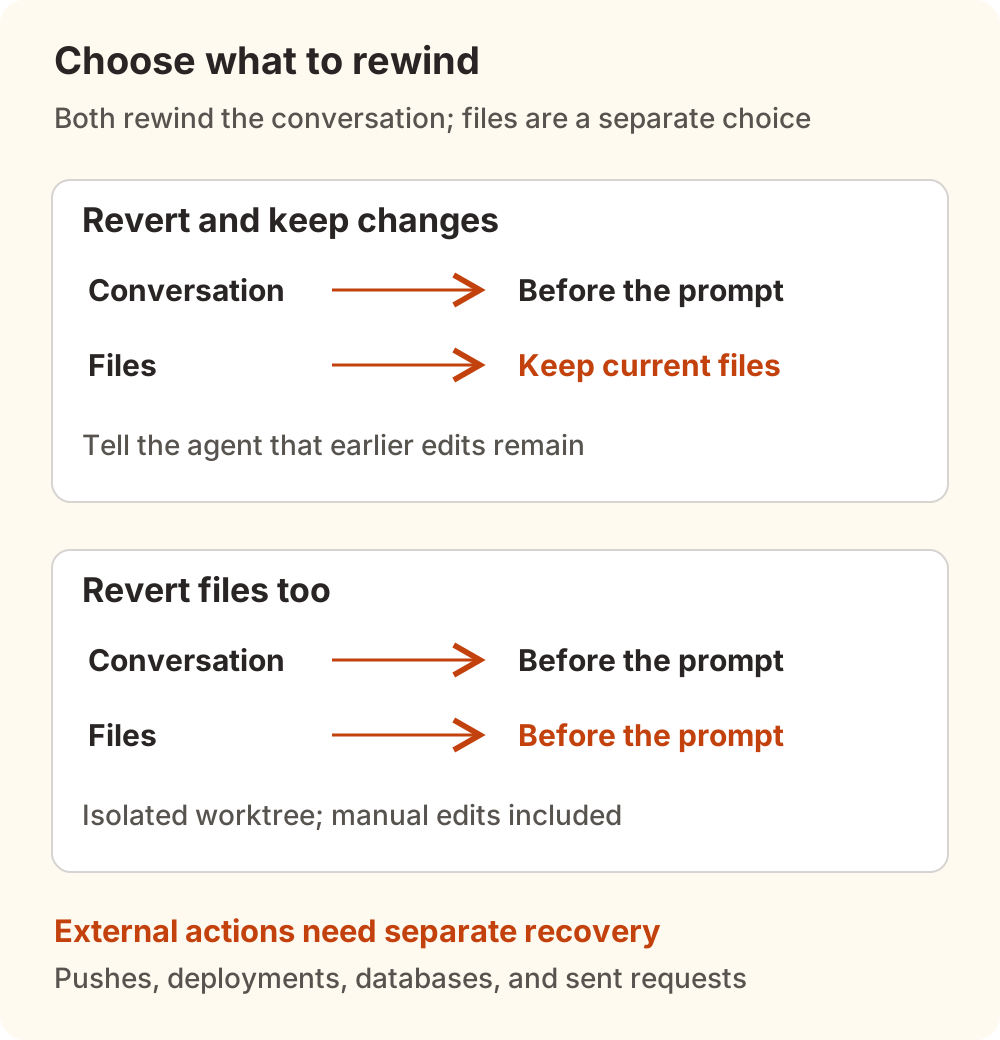
Keeping changes leaves an older conversation beside newer files. When resending, say that the previous attempt's edits remain and ask the agent to inspect the current diff first. Otherwise, it may reason from a conversation that no longer explains the code on disk.
For a separate implementation, another option is a new worktree with an explicit task brief. See threads, forks, and worktree isolation for their directory relationships. A fork is not a file backup.
Why file restore requires an isolated worktree
The error File restore requires an isolated worktree means the operation failed its workspace-isolation check. The v0.1.7 guard requires a worktree and checks whether other threads or agent sessions use the same directory, a directory inside it, or a directory containing it.
A second task working only in src/ still overlaps with a restore of the whole workspace. A thread working directly in the project's original directory also fails the dedicated-worktree condition.
Check actual paths:
- Identify the machine and worktree used by the current thread.
- Find other threads, forks, side chats, or children using that directory or an overlapping path.
- Pause competing writes and preserve their results. If you only need to rewrite the instruction, choose Revert and keep changes.
Stopping or archiving another thread does not guarantee that restoration becomes available. This version checks paths retained by archived threads too. It skips a specific case of an idle side chat with no tool activity, rather than every idle conversation. Do not delete conversations in bulk or bypass the guard just to dismiss the error.
Two recent reports illustrate different cases. Issue #32429 describes a nightly build offering a file-restore choice that is then rejected. Issue #31865 describes completed child tasks retaining the parent's worktree path and blocking restoration. Both reports were prepared with AI assistance and remained open without replies on the research date. One concerns the UI presenting an unavailable action; the other concerns ownership of completed child work.
PR #31877 proposes a change for the child-task case, but was still unmerged. We did not run that patch and do not present it as a released fix.
A saved git diff is only part of a backup
Pause tasks that can write to the directory, then run these read-only commands in the actual worktree. For a remote task, run them on that machine:
pwd
git rev-parse --show-toplevel
git branch --show-current
git rev-parse HEAD
git status --short --untracked-files=all
git diff
git diff --cached
git ls-files --others --exclude-standard
These identify the location, branch, commit, and different classes of changes. git diff primarily shows unstaged changes to tracked files. git diff --cached shows staged changes. Find untracked files separately through status and ls-files.
For our local check, we created a tracked edit, a staged new file, untracked notes, and an ignored sample configuration. The notes appeared in the file listings but in neither diff; the ignored configuration also stayed out of normal status output. The commands left the working files and index unchanged. This verifies the inspection commands, not a T3 restore.
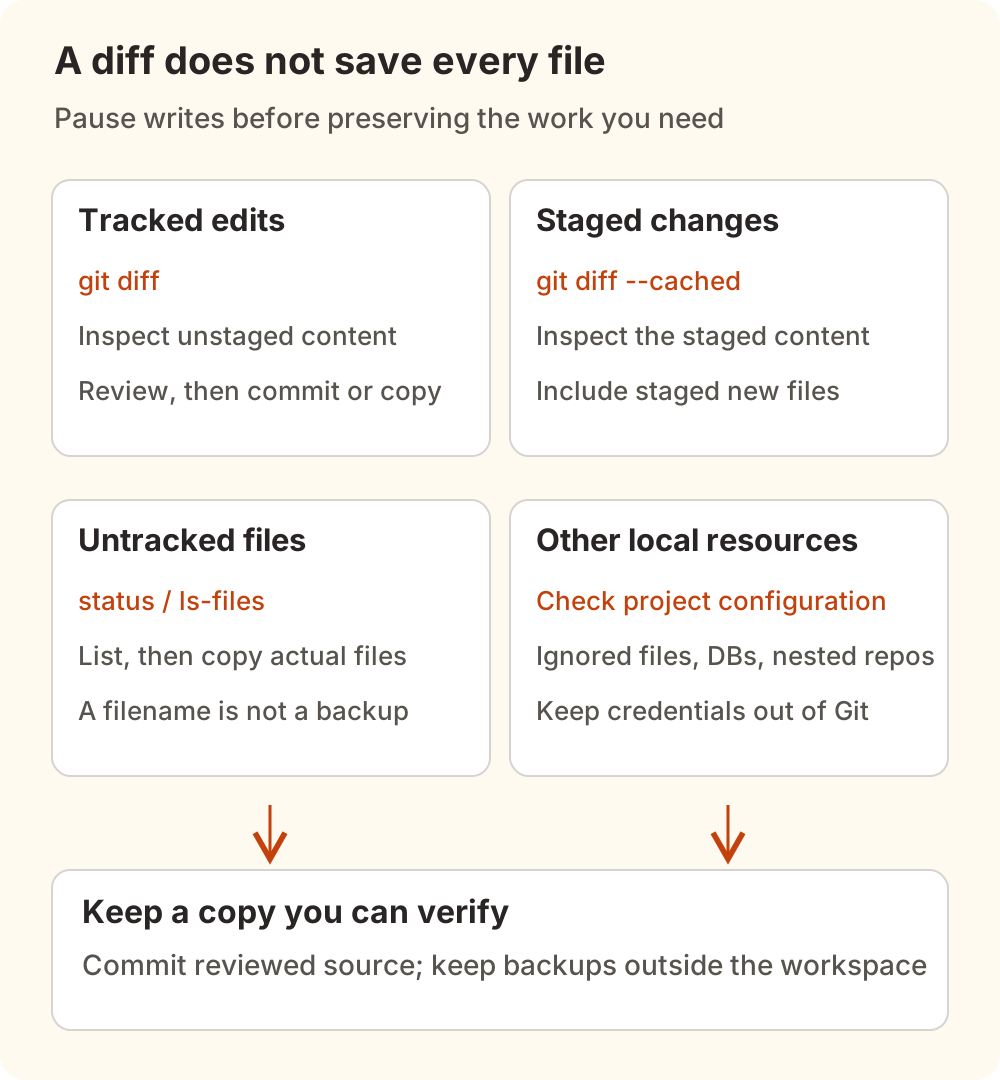
Review and commit source changes you want to retain on the current task branch, or save the relevant files to a private location outside the workspace. An untracked filename is not a copy of its contents. Check ignored local configuration, local databases, and nested repositories separately. Do not commit credentials in pursuit of a “complete” backup.
A recent V2EX coding-practice discussion recommends small changes, frequent commits, and recording verification and rollback information. That is practical advice from its author, not evidence of checkpoint coverage. It does provide a more explicit starting point for recovery.
A checkpoint exists only for what it captured
A checkpoint is a saved workspace state. The v0.1.7 Git driver restores files from that snapshot and cleans up some untracked files absent from the restored state. Your manual edits during the same period fall within that scope.
Distinguish two situations:
- A file created after the target snapshot may disappear when restoring the earlier state. That is consistent with returning to an earlier set of files.
- A file that existed before the snapshot but was never captured cannot be recovered from it. The presence of a checkpoint does not establish that every file you need is inside it.
Issue #32360 reports the second case with Windows 11, Git 2.56.0.windows.4, and T3 0.1.7. A blank CRLF line in the root .gitignore could cause the directory to be classified as ignored, leaving unstaged untracked files out of the checkpoint. The author tested the Git probe, staging choice, and restore commands separately and explicitly did not drive the complete restore through T3's UI.
The issue remained open without replies on the research date, and PR #32374 remained unmerged. We did not independently reproduce this on Windows. It does not establish that every Windows user loses files, nor does it establish that an older checkpoint is complete.
If your workspace may match those conditions, these read-only probes can provide a starting point:
git check-ignore --no-index .
git check-ignore -v --no-index .
A . from the first command means Git classifies that path as ignored. The verbose command identifies the source, line, and pattern. Exit status 1 is normal when no path is ignored; it is not a model or network failure. Verbose output can also describe a negated rule, so output alone is not a verdict. See the Git reference for exit-status semantics.
This probe does not verify a snapshot's contents. Before changing an ignore rule, establish whether the directory was intentionally ignored. Changing the rule cannot add missing content to existing checkpoints. Save important files separately, then validate a fresh checkpoint in a disposable project without private data.
Verify the conversation and files separately
A shorter conversation or a dismissed progress indicator is not enough to validate recovery. Check the result appropriate to your choice:
- After Revert and keep changes, the old prompt should be back in the composer and files should retain the versions you intended to keep. Explain those retained changes before resending.
- After Revert files too, check the files against the intended pre-message state: what remains, which new files should disappear, and what happened to manual edits. Run the project's relevant existing checks afterward.
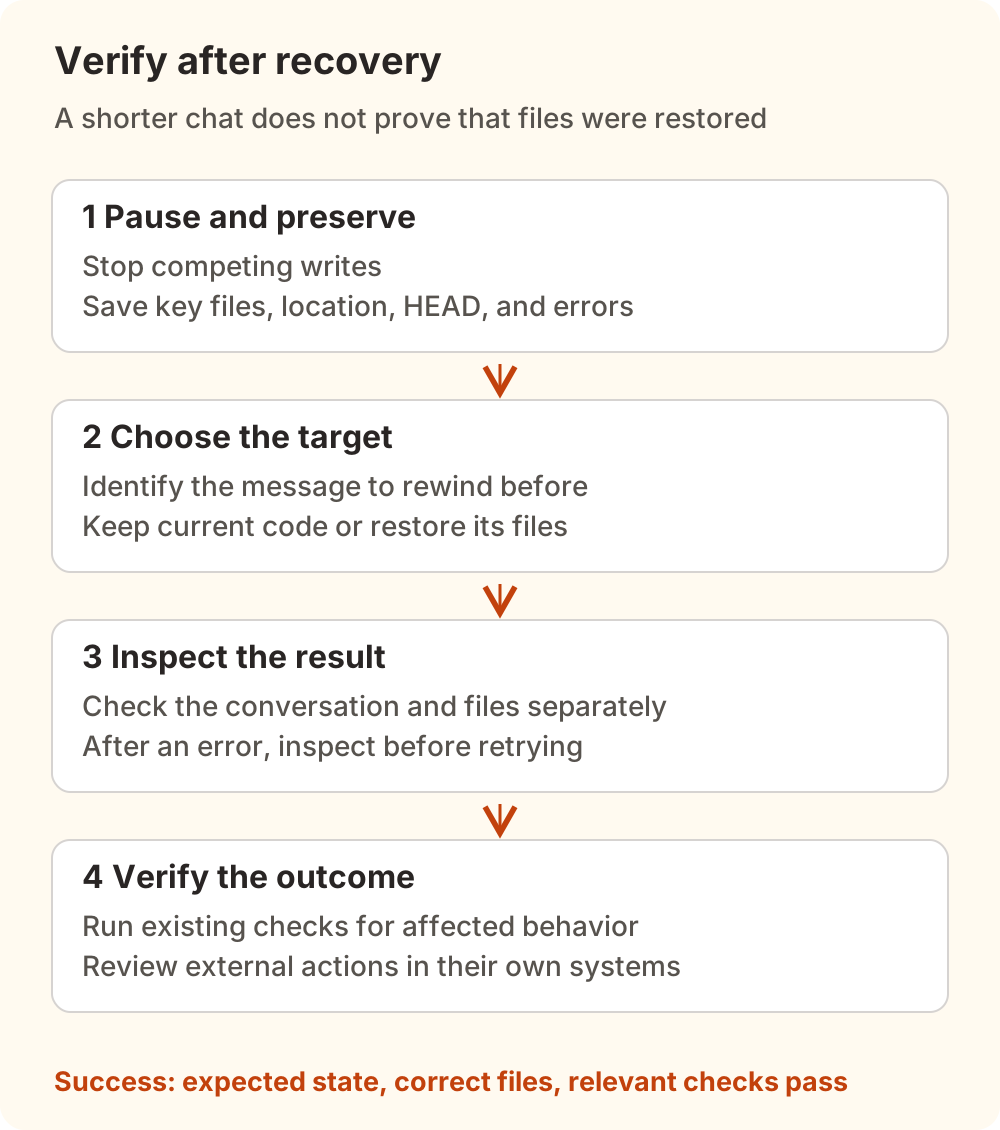
If the operation fails, inspect git status and the important files before choosing another action. Do not assume that every step succeeded or that nothing changed. Repeatedly clicking restore makes the state harder to reason about. If the thread never got past startup, use the Preparing workspace checks instead; setup is a different path.
The source-control documentation also distinguishes a turn's own changes from the full saved workspace. Its file list may omit files brought in by a pull, merge, or rebase, while restore still returns the complete saved workspace. A turn listing two changed files does not limit restoration to those two files. Review the branch comparison and uncommitted changes when assessing the full result.
External actions and model requests keep their own records
Conversation rewind does not reverse external actions or separate provider memory. Pushed commits, database changes, and sent notifications need their own recovery procedures. Restoring local files also does not erase model requests already sent to a service.
For a Nbility connection, use connection basics to confirm the actual API route, then consult that service's request records. Our T3 Usage and billing guide explains the difference between the client estimate and actual charges. Resending work can produce new requests; rewind is not an automatic reversal of the previous run's cost.
Before the next rollback, write down three things: the message you want to return to, the files that must survive, and the external actions already performed. Those answers determine the right recovery option and give you something concrete to verify afterward.