Connect Cline to a Custom API: Models, Permissions, and Cost Control
Set Cline’s OpenAI Compatible provider, Base URL, API key and model ID. Verify chat and tool calls, then configure permissions and token limits.
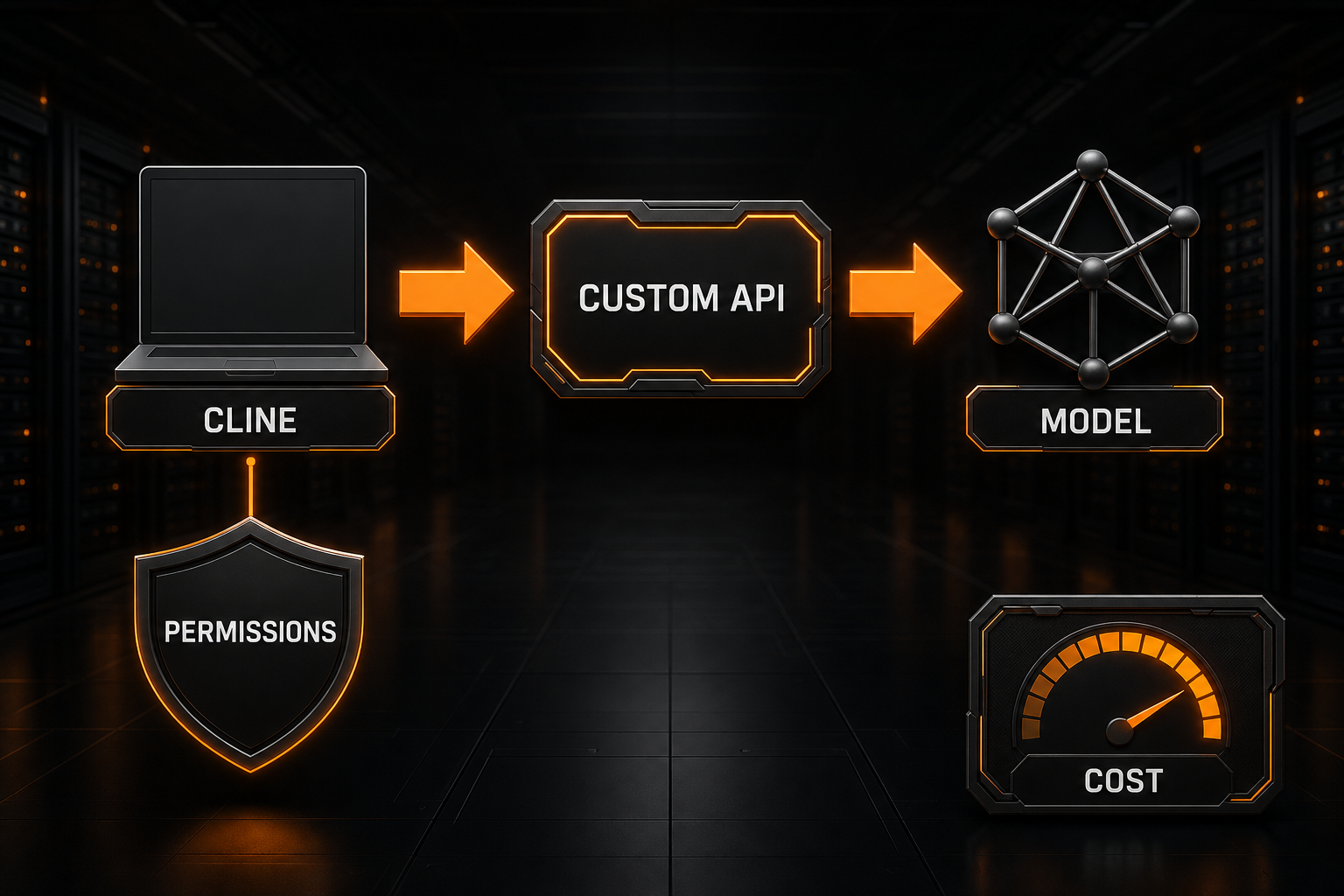
Choose OpenAI Compatible in Cline Settings, enter the Base URL, API key and exact model ID, then verify a read-only file task. For Nbility, use https://api.nbility.ai/v1 without appending /chat/completions.
Start with the settings and verification steps below, followed by installation, model capabilities, Auto Approve and cost controls. The connection fields were checked against Cline's official configuration guide on 2026-10-14. Model capabilities still depend on the selected model and service.
Required OpenAI-Compatible Settings
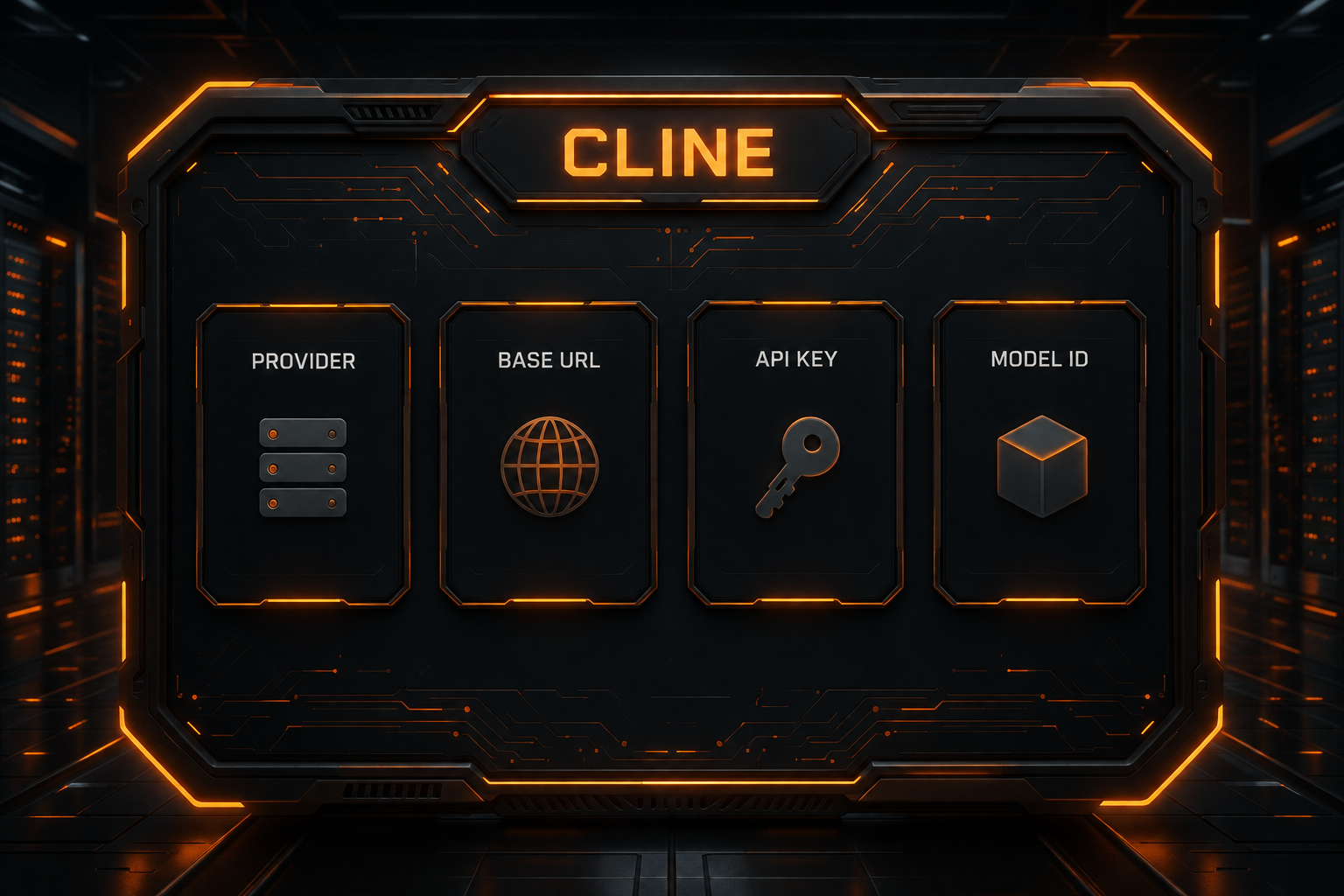
In Cline Settings, select:
API Provider: OpenAI Compatible
Then configure four essential layers:
| Setting | Purpose |
|---|---|
| Base URL | API root for the gateway or inference service |
| API Key | Credential for that service |
| Model ID | Exact model identifier accepted by the service |
| Model Configuration | Context, output, vision, tool, and price metadata |
For example, an Nbility setup is:
API Provider: OpenAI Compatible
Base URL: https://api.nbility.ai/v1
API Key: YOUR_API_KEY
Model ID: copy it from the model catalog
A Base URL commonly ends at the version root rather than the complete endpoint:
/chat/completions
The client normally appends the request route. Providers can use different layouts, so their current documentation remains authoritative. See What Is an OpenAI-Compatible API? for a protocol-level explanation.
Validate the First Connection
Click Verify after entering the provider details. Once it succeeds, do not immediately enable unrestricted automation. Test in this order:
- read one small file;
- summarize the project without edits;
- enter Plan Mode and request an implementation plan;
- switch to Act Mode and change one test file;
- run one safe test command;
- inspect the diff and Checkpoint;
- continue for several turns to observe tool stability.
A useful first prompt is:
Read package.json and the test directory. Propose a minimal test plan without changing files.
Then, after review:
Add only one minimal test, run its test command, and summarize the actual changes. Do not install dependencies.
This sequence exercises understanding, reads, edits, terminal output, and multi-turn state without starting with a dangerous task.
Install Cline
Cline currently offers an IDE extension, CLI, SDK, and Kanban paths. Most developers can begin with the IDE extension.
In VS Code:
- open Extensions;
- search for
Cline; - install the official extension;
- open the Cline sidebar;
- enter Settings to choose a model provider.
The official installation guide also lists Cursor, Windsurf, VSCodium, JetBrains, and other editor paths. Exact control locations can change, so use the current extension UI as the source of truth.
Do Not Guess Model Configuration
Cline's OpenAI Compatible panel can describe advanced model properties such as:
- Max Output Tokens;
- Context Window;
- Image Support;
- Computer Use or Tool Calling;
- Input Price;
- Output Price.
These fields affect behavior and local estimates.
Context Window
A value that is too small can trigger earlier compaction or context loss. A value larger than the model's actual capacity can work initially and fail only when the request grows. Use the provider's published value.
Max Output Tokens
A low limit can truncate code, tool arguments, or the final report. A large limit does not automatically improve quality and can increase latency and maximum spend.
Image Support
Enable it only when both the model and gateway accept image input. A multimodal model name does not prove that a third-party endpoint implements the relevant request format.
Computer Use and Tool Calling
Cline depends on tools. A basic Chat Completions response does not prove that the gateway preserves tool definitions, streamed arguments, and finish reasons correctly. Validate with real file and shell actions.
Input and Output Price
If Cline uses these fields for cost estimation, the units must match the current UI and the provider's published prices. Incorrect metadata does not change the upstream bill; it only makes the local estimate misleading.
Configure Auto Approve Conservatively
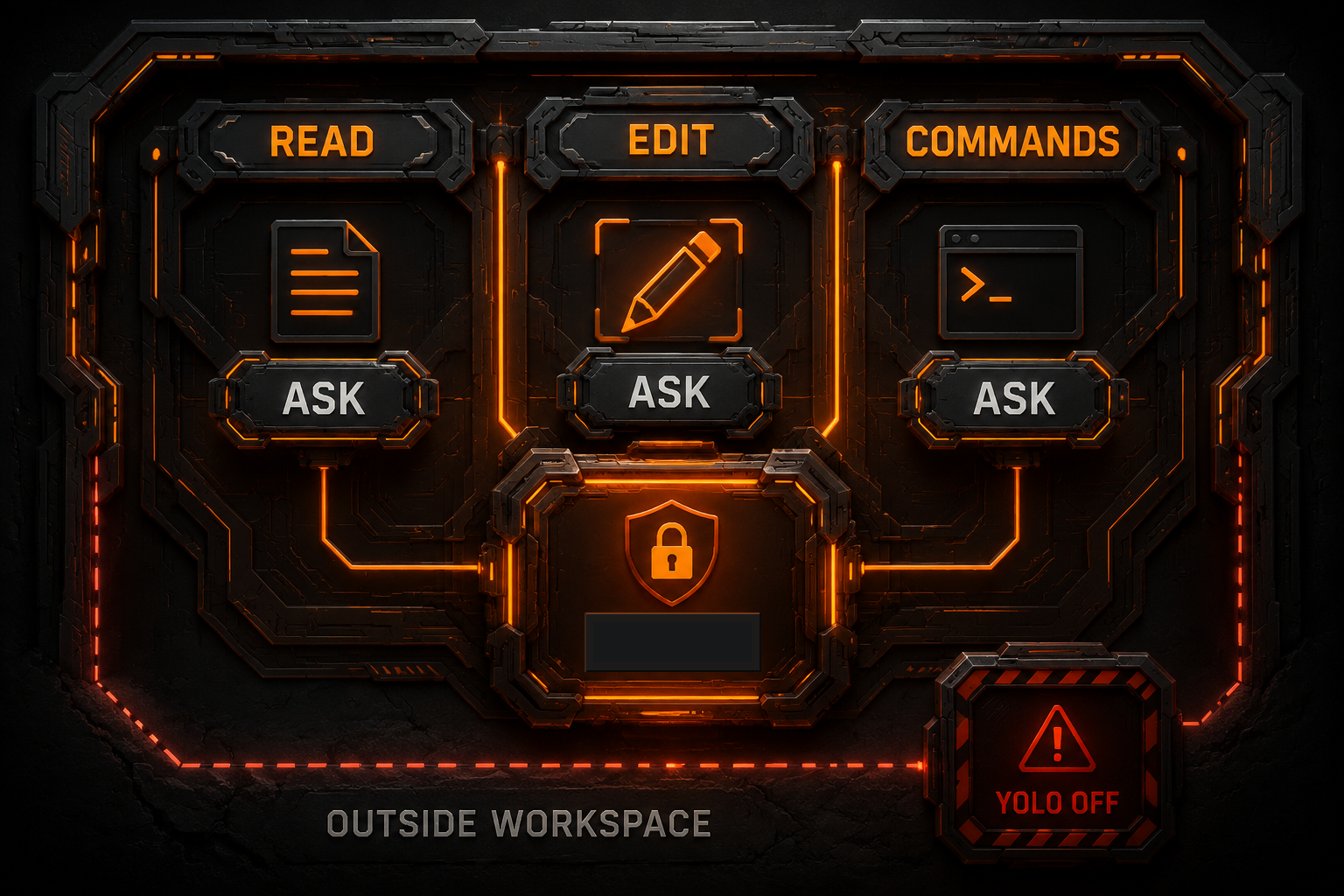
Cline evaluates Auto Approve for each tool call. Current documentation describes categories such as:
| Permission | Safer starting point |
|---|---|
| Read project files | Enable if needed |
| Read all files | Keep off |
| Edit project files | Enable only after validation |
| Edit all files | Keep off |
| Execute safe commands | Enable in a reversible project if useful |
| Execute all commands | Keep off |
| Use browser | Enable for a specific need |
| Use MCP servers | Trust individually |
Read all files and Edit all files extend access outside the workspace. They should not be treated as convenience toggles.
“Safe Command” Is Not a Static Allowlist
Cline's documentation explains that commands are not matched against one fixed list. The model marks a command and its arguments with requires_approval. Builds, tests, and git status are commonly low risk, while dependency installation, overwrites, and destructive removal commonly require approval.
Auto Approve is therefore not a hard security boundary. Monitor commands and constrain impact through Git, a container, or a sandbox even when only “safe commands” are enabled.
Avoid YOLO Mode in Real Workspaces
YOLO Mode automatically approves file operations, terminal commands, browser actions, MCP tools, and mode transitions. Cline's documentation explicitly warns that it disables approval protections.
Consider it only in:
- disposable repositories;
- containers without production credentials;
- sandboxes that can be destroyed completely;
- low-risk workflows that have already been validated repeatedly.
Do not enable it in a normal workspace containing SSH keys, production .env files, database credentials, or deployment access.
Combine Checkpoints with Git
Cline Checkpoints are enabled by default. When Cline edits files or runs commands, it saves project snapshots that let you restore code while keeping the conversation context.
Checkpoints are useful, but they do not replace Git:
- Checkpoints are convenient for returning to an agent step;
- Git provides branch isolation, review, durable history, and collaboration;
- databases, cloud resources, external APIs, and pushed commits may not be restored by a file snapshot.
A reliable sequence is:
create a Git branch
→ confirm a clean working tree
→ ask Cline for a plan
→ make small changes
→ inspect the Checkpoint and diff
→ run tests
→ review and commit
A recoverable project snapshot is not permission to approve an unknown database migration, production deployment, or destructive shell command.
Use .clineignore to Reduce Context and Exposure
Cline supports .clineignore to restrict project paths it can access. A starting file might include:
.env
.env.*
*.pem
*.key
secrets/
backups/
dist/
coverage/
node_modules/
This can reduce:
- accidental credential exposure to the model;
- tokens spent on irrelevant build artifacts;
- latency from searching large directories;
- the chance of editing files the agent should not touch.
.clineignore is not an operating-system sandbox. If outside-workspace reads or shell commands remain available, you still need permission and environment isolation.
Control the Real Cost of Cline
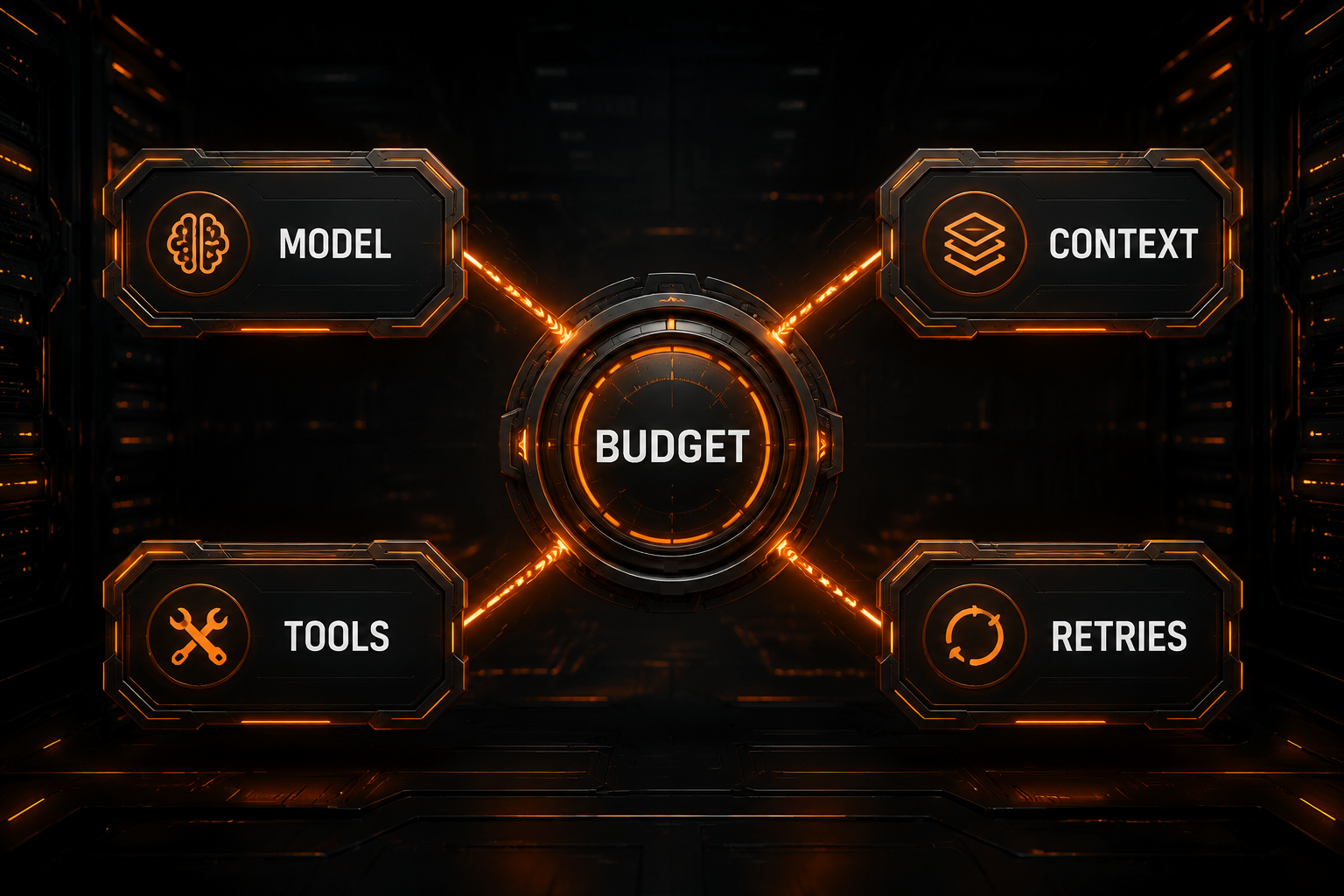
Cline's cost is not just the final answer. Agent loops repeatedly send:
- system instructions and project rules;
- file content already gathered;
- conversation history;
- tool definitions;
- terminal output;
- diffs, errors, and retry context.
A useful mental model is:
Total cost ≈ repeated input + repeated output + tool loops + retries + later calls after compaction
1. Route Models by Task
- file search, formatting, and tiny fixes: a fast lower-cost model;
- normal features, tests, and refactors: a primary coding model;
- architecture and difficult bugs: a stronger reasoning model.
Do not spend a flagship model on every lookup. A model still needs reliable tool calling to be cost-effective in Cline.
2. Plan Before Act
Vague requests cause repeated exploration. Use Plan Mode to define scope, target files, tests, and prohibited actions before starting execution.
3. Shrink Context
- add relevant files precisely with
@; - exclude generated content with
.clineignore; - avoid scanning an entire monorepo by default;
- keep only the important portion of long command output;
- start a new task when the topic changes substantially.
4. Bound Retries and Tool Loops
When the same error repeats, stop rather than letting the agent retry indefinitely. Inspect the Base URL, model capabilities, permissions, dependencies, and error output, then decide whether to change the model.
5. Compare Estimated and Billed Cost
Price metadata in Cline is an estimate, not the source of billing truth. Periodically compare the provider invoice, token usage, and Cline display to detect wrong units, caching assumptions, or model routing.
6. Centralize Model Routing Where Helpful
A shared API gateway can centralize keys, model selection, and usage when a project needs several models. This is easier to audit than scattering credentials across editors, but the gateway must still support Cline's streaming and tool-call requirements.
Troubleshooting
Invalid API Key or 401
Check that:
- the key belongs to the current Base URL;
- no spaces or characters were lost;
- the account can access the model;
- the gateway does not require a different authentication header;
- the key has not been revoked or blocked by a budget limit.
Never paste a complete key into chat, an issue, or a screenshot.
Model Not Found or 404
Use the provider's exact model ID, not its marketing name. Check whether the Base URL needs /v1 or accidentally includes /chat/completions.
Verify Passes, but Tools Fail
Possible causes include:
- the model does not support tools;
- the gateway only implements basic text requests;
- streamed tool arguments are truncated or transformed;
- Model Configuration claims unsupported capabilities;
- the output token limit is too low.
Reduce diagnosis to one read, one test edit, and one command.
Context Window Exceeded
- verify the configured context capacity;
- exclude generated directories;
- narrow the task;
- start a new conversation;
- avoid repeatedly feeding complete build logs.
A reliable process is to verify the model's real window, prioritize relevant files, exclude generated output, trim long logs, and start a fresh conversation when the task changes.
429, Timeouts, and 5xx
A 429 usually indicates quota, concurrency, or rate limits. Timeouts can originate in long reasoning, networking, or tool loops. A 5xx is more likely a gateway or upstream problem. Use bounded backoff rather than unlimited immediate retries. See the AI API error-code guide.
Configure Cline with Nbility
To test several models behind one OpenAI-compatible endpoint, copy a current Model ID from the Nbility model catalog and enter:
API Provider: OpenAI Compatible
Base URL: https://api.nbility.ai/v1
API Key: YOUR_API_KEY
Model ID: copy it from the model catalog
Begin with Auto Approve disabled and a read-only task. Confirm tools, streaming, and cost display before enabling edit or command permissions one category at a time. Redacted compatibility failures can be submitted through Nbility support tickets.
FAQ
Can Cline use any OpenAI-compatible API?
You can configure any endpoint that claims compatibility, but full agent behavior is not guaranteed. Validate streaming, tool calls, multi-turn context, and errors.
Should the Base URL include /v1?
It depends on the provider. Many services use /v1 as the version root, but follow current documentation and do not use /chat/completions as the Base URL.
What is the difference between Auto Approve and YOLO Mode?
Auto Approve can be scoped by files, commands, browser, and MCP categories. YOLO Mode approves everything and carries substantially more risk.
Can Checkpoints replace Git?
No. Checkpoints are convenient for reverting agent file changes. Git remains essential for branch isolation, review, durable history, and collaboration.
Why can a cheaper model cost more?
Weak tool behavior, incorrect changes, and repeated retries can outweigh a lower token price. Compare total calls and success rate for the same task.
Summary
A dependable Cline custom API setup follows this order:
- select the OpenAI Compatible provider;
- enter accurate Base URL, API key, model ID, and capability metadata;
- validate with Verify, a read-only prompt, and a minimal tool chain;
- enable only the Auto Approve categories the task requires;
- combine Checkpoints, Git,
.clineignore, and isolation; - control cost with model routing, Plan Mode, small context, and bounded retries.
A useful integration is not one that returns a sentence. It completes coding tasks reliably inside explicit permission and budget boundaries, with a practical rollback path.