Connect Continue to an OpenAI-Compatible API in VS Code
Configure Continue 2.0 in VS Code with config.yaml, an OpenAI-compatible apiBase, API key, model roles, and fixes for Chat, Edit, Autocomplete, and Responses API issues.
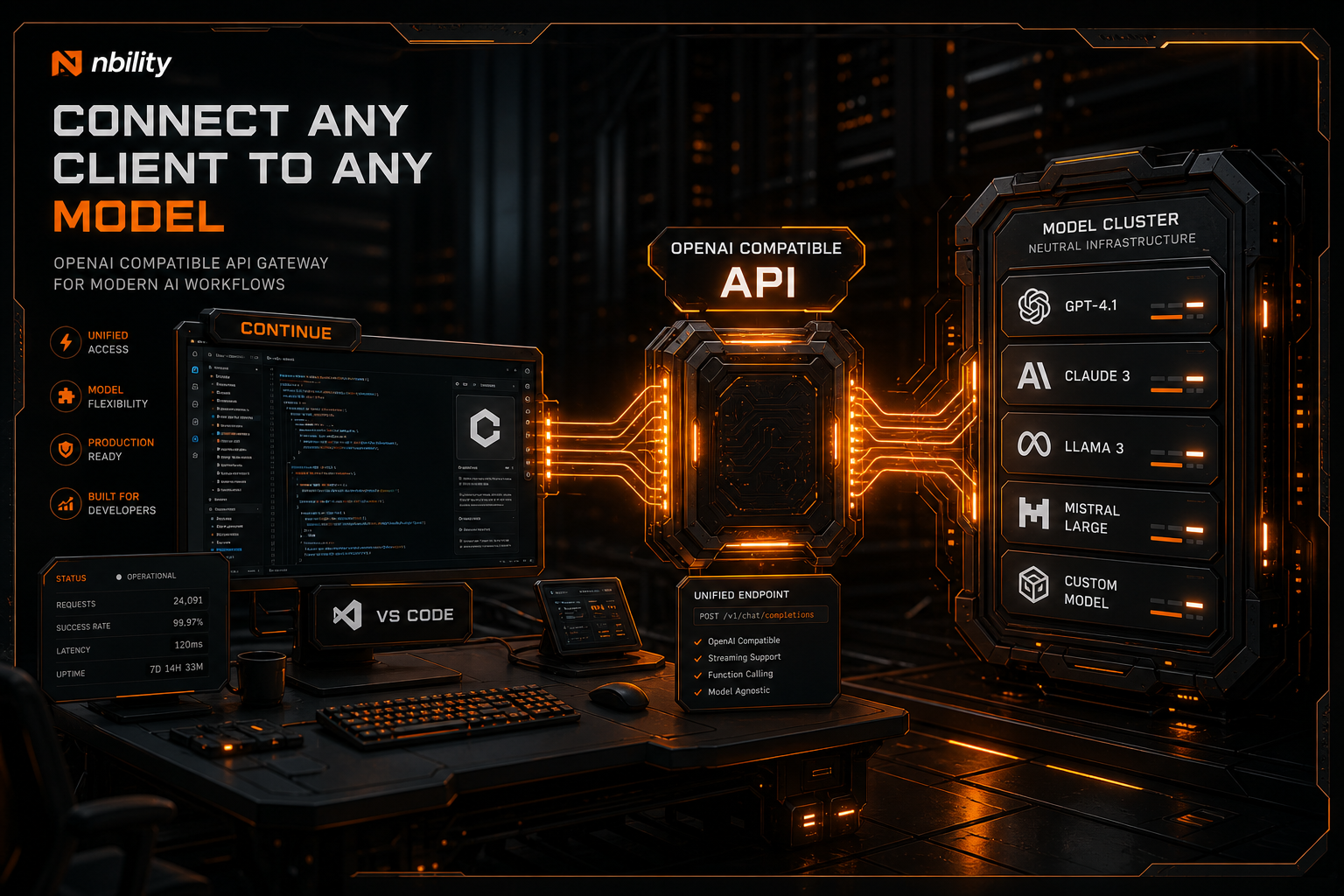
Continue's OpenAI provider accepts a custom apiBase. Set provider: openai, the version-root URL, API key and model ID in ~/.continue/config.yaml to connect an existing VS Code installation to an OpenAI-compatible service. Verify Chat with the minimal configuration below before enabling Edit, Apply or Autocomplete.
Maintenance status checked on 2026-10-14: the official README still describes the project as no longer actively maintained and calls 2.0.0 the final VS Code, CLI and JetBrains release. This guide is for existing installations; account for maintenance and new-model compatibility when making a long-term choice.
Full OpenAI-Compatible Configuration
Continue's OpenAI provider documentation uses four essential settings:
- set
providertoopenai; - use the exact model ID accepted by the provider;
- point
apiBaseat the third-party API version root; - supply the credential required by that service.
An Nbility example is:
name: Nbility Coding
version: 0.0.1
schema: v1

models:
  - name: Nbility Coding Model
    provider: openai
    model: YOUR_MODEL_ID
    apiBase: https://api.nbility.ai/v1
    apiKey: YOUR_API_KEY
    roles:
      - chat
      - edit
      - apply
| Field | Purpose |
|---|---|
name | Display name inside Continue |
provider | Protocol adapter, here openai |
model | Exact model ID accepted by the gateway |
apiBase | Version root of the compatible API |
apiKey | Credential for that gateway |
roles | Continue features assigned to this model |
Do not set apiBase to the complete route:
https://api.nbility.ai/v1/chat/completions
Use the version root instead:
https://api.nbility.ai/v1
Continue appends the endpoint required by a feature. See What Is an OpenAI-Compatible API? for a deeper explanation of Base URLs and routes.
Verify Chat After Saving
Select the configured model and ask “Reply only OK, without calling tools.” Once text works, select a small file and request an explanation without edits. Check the model in Usage Logs. Test Edit and tool use separately; a text response does not validate every role. The SDK setup guide provides a separate way to check the API connection.
Test the First Request
After saving config.yaml, select the new model in Continue and begin with a read-only prompt:
Read package.json in this project. Explain the framework and test commands without changing files.
If Chat works, test Edit:
Add one minimal example in a new test file. Do not install dependencies or modify other files.
Then verify:
- responses remain stable;
- the correct files are read;
- the Edit diff is reasonable;
- Apply places changes correctly;
- multi-turn context remains usable;
- gateway logs and usage match the task.
A simple greeting is not enough. A coding assistant must be tested with code context and an actual edit workflow.
Install the Continue VS Code Extension
Open VS Code Extensions and search for:
Continue - open-source AI code agent
You can also run this from Quick Open:
ext install Continue.continue
After installation, open the Continue Chat sidebar. The official documentation lists this VS Code shortcut:
Ctrl/Cmd + L
Open the Config selector above the chat input, find Local Config, and select its gear icon to edit it.
Continue 2.0 Uses config.yaml
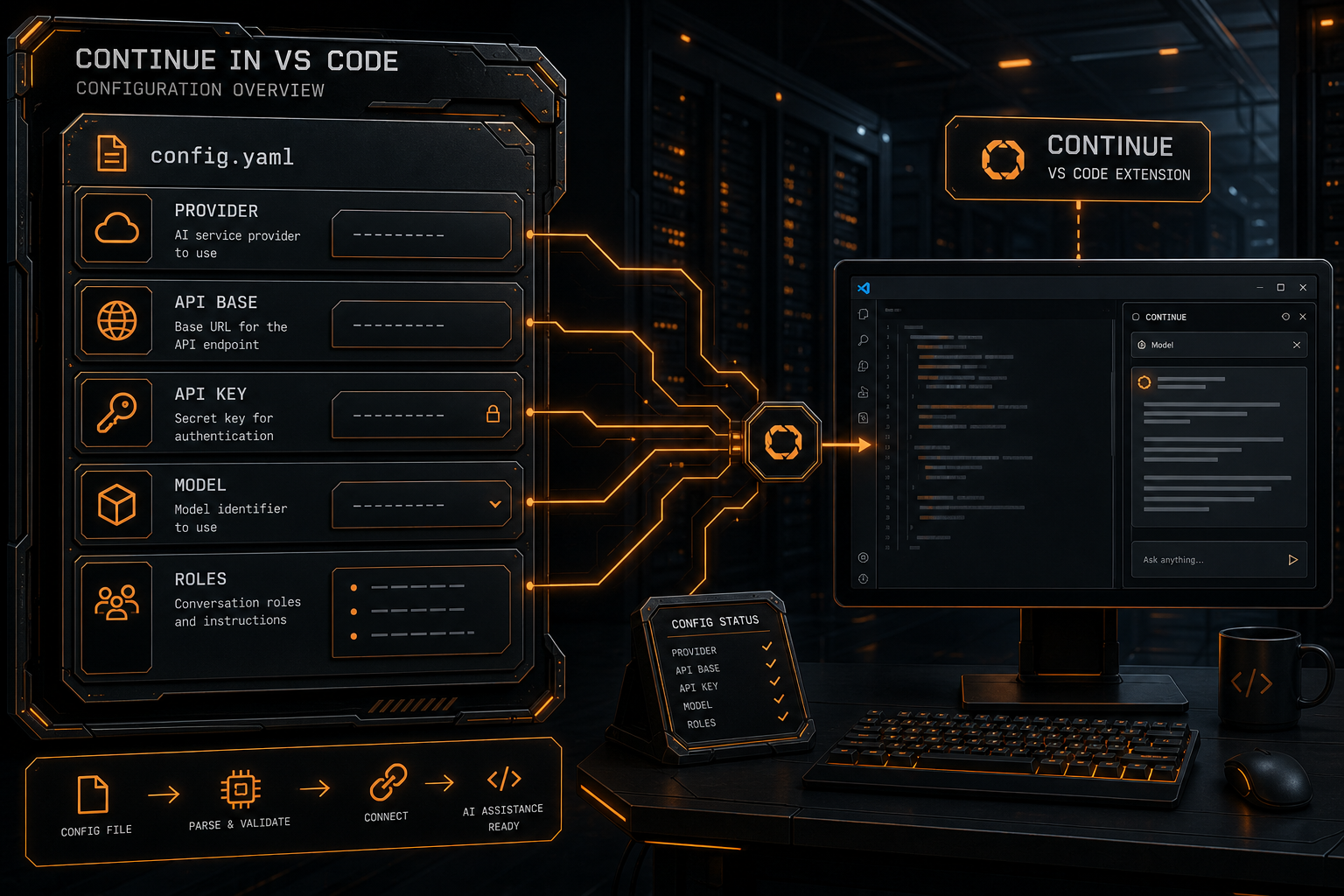
The current local configuration paths are:
macOS / Linux: ~/.continue/config.yaml
Windows: %USERPROFILE%\.continue\config.yaml
Older guides frequently refer to:
~/.continue/config.json
The official docs now mark JSON configuration as deprecated. New configurations should use YAML.
A minimal top-level structure is:
name: My Local Config
version: 0.0.1
schema: v1

models:
  # model entries
Continue automatically reloads the configuration after the file is saved, so VS Code does not need to restart. YAML indentation errors can prevent the model from loading and are usually surfaced as configuration diagnostics.
Keep Real API Keys Out of Git
The YAML above uses YOUR_API_KEY to keep the example readable. Do not commit a real credential.
Continue's configuration guide recommends referencing environment variables or secrets for sensitive data rather than hardcoding values. Secret-management entry points can differ by installation path, so follow the final 2.0.0 extension's Local Config and Secret behavior.
At minimum:
- keep real keys out of shared project configuration;
- never expose complete keys in screenshots, issues, or chat;
- create a dedicated key for development tools;
- apply an appropriate budget or permission scope;
- revoke and rotate the key after a leak.
Roles Decide Where a Model Is Used
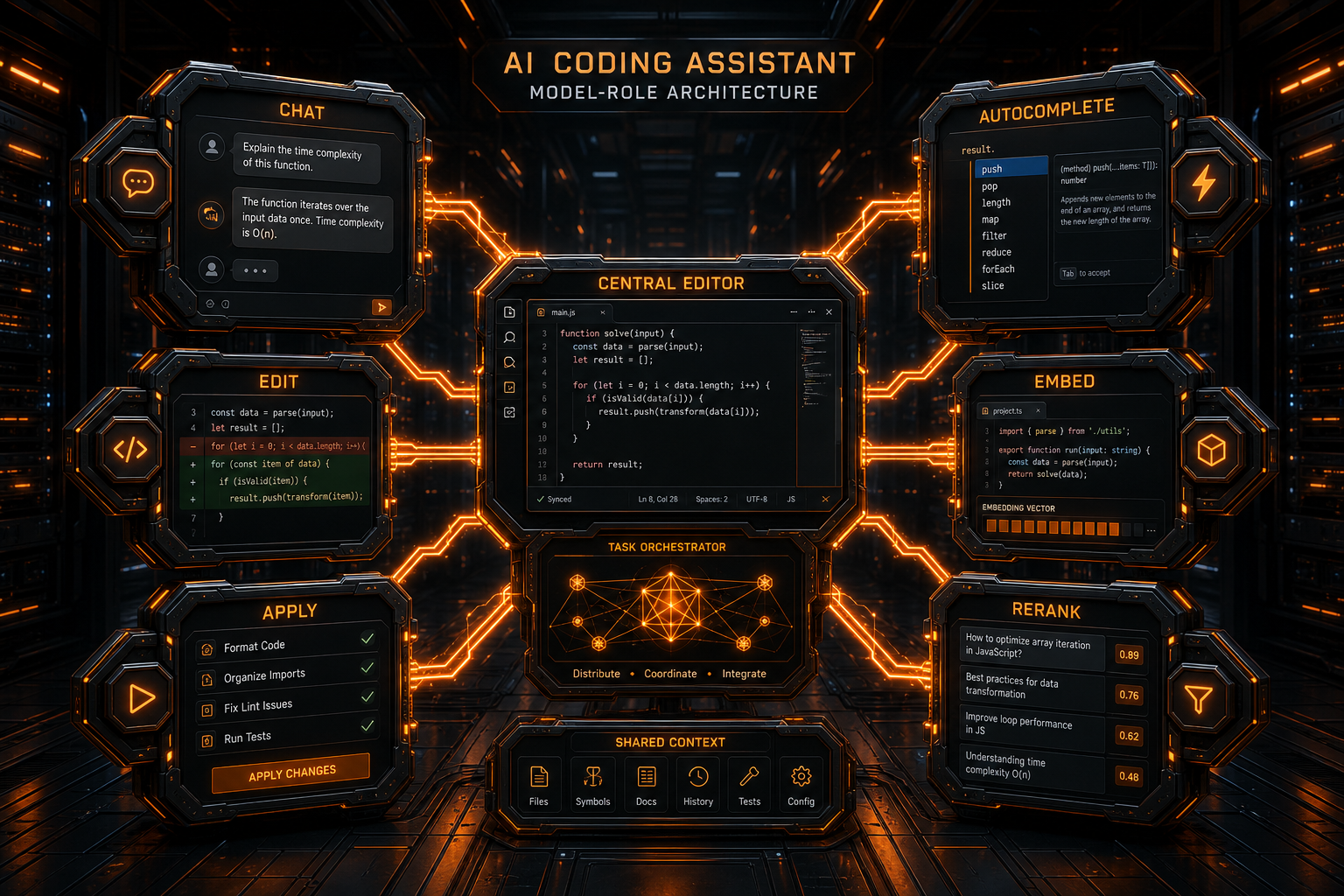
Continue does more than call one chat model. Its documented model roles include:
| Role | Purpose |
|---|---|
chat | Sidebar conversations and code questions |
edit | Generate changes from edit instructions |
apply | Decide how changes should be applied to files |
autocomplete | Real-time inline code suggestions |
embed | Generate vectors for code or documentation search |
rerank | Reorder retrieved results by relevance |
A normal OpenAI-compatible coding model can start with:
roles:
  - chat
  - edit
  - apply
Do not automatically assign it to autocomplete, embed, and rerank as well.
Configure Autocomplete Separately
Autocomplete has stricter latency and continuation requirements. A model that excels at long-context reasoning may be a poor choice for a request triggered on every few keystrokes.
If the provider offers a fast code model, add a separate entry:
models:
  - name: Main Coding Model
    provider: openai
    model: YOUR_MAIN_MODEL_ID
    apiBase: https://api.nbility.ai/v1
    apiKey: YOUR_API_KEY
    roles:
      - chat
      - edit
      - apply

  - name: Fast Autocomplete Model
    provider: openai
    model: YOUR_FAST_MODEL_ID
    apiBase: https://api.nbility.ai/v1
    apiKey: YOUR_API_KEY
    roles:
      - autocomplete
Whether it works well still depends on Continue's adapter and the model's behavior. If inline completion remains unreliable, remove the role rather than assuming a working Chat request proves Autocomplete compatibility.
Embed and Rerank Are Not Chat Roles
Embedding and reranking use different input and output contracts. Configure them only when the provider exposes the appropriate model and endpoint. A chat model cannot be used as a drop-in replacement simply because its name is available.
Responses API vs Chat Completions
Continue's current OpenAI provider documentation says that some o-series and GPT-5 models may use the /responses endpoint by default.
If a compatible gateway implements only /chat/completions, or if errors mention reasoning summaries, streaming, or organization verification, configure:
models:
  - name: Compatible Chat Model
    provider: openai
    model: YOUR_MODEL_ID
    apiBase: https://api.nbility.ai/v1
    apiKey: YOUR_API_KEY
    useResponsesApi: false
    roles:
      - chat
      - edit
      - apply
This instructs Continue to use Chat Completions instead of the Responses API.
When a request returns 404, inspect whether the failed path is:
/v1/responses
or:
/v1/chat/completions
The gateway can support one without supporting the other.
When to Use Legacy Completions
The OpenAI provider also retains:
useLegacyCompletionsEndpoint: true
This forces the older Completions endpoint rather than Chat Completions. Do not enable it unless a local service or legacy model explicitly requires that protocol.
Modern chat and coding models should normally use Chat Completions or Responses. Enabling legacy mode incorrectly can break messages, tools, or context formatting.
Troubleshooting
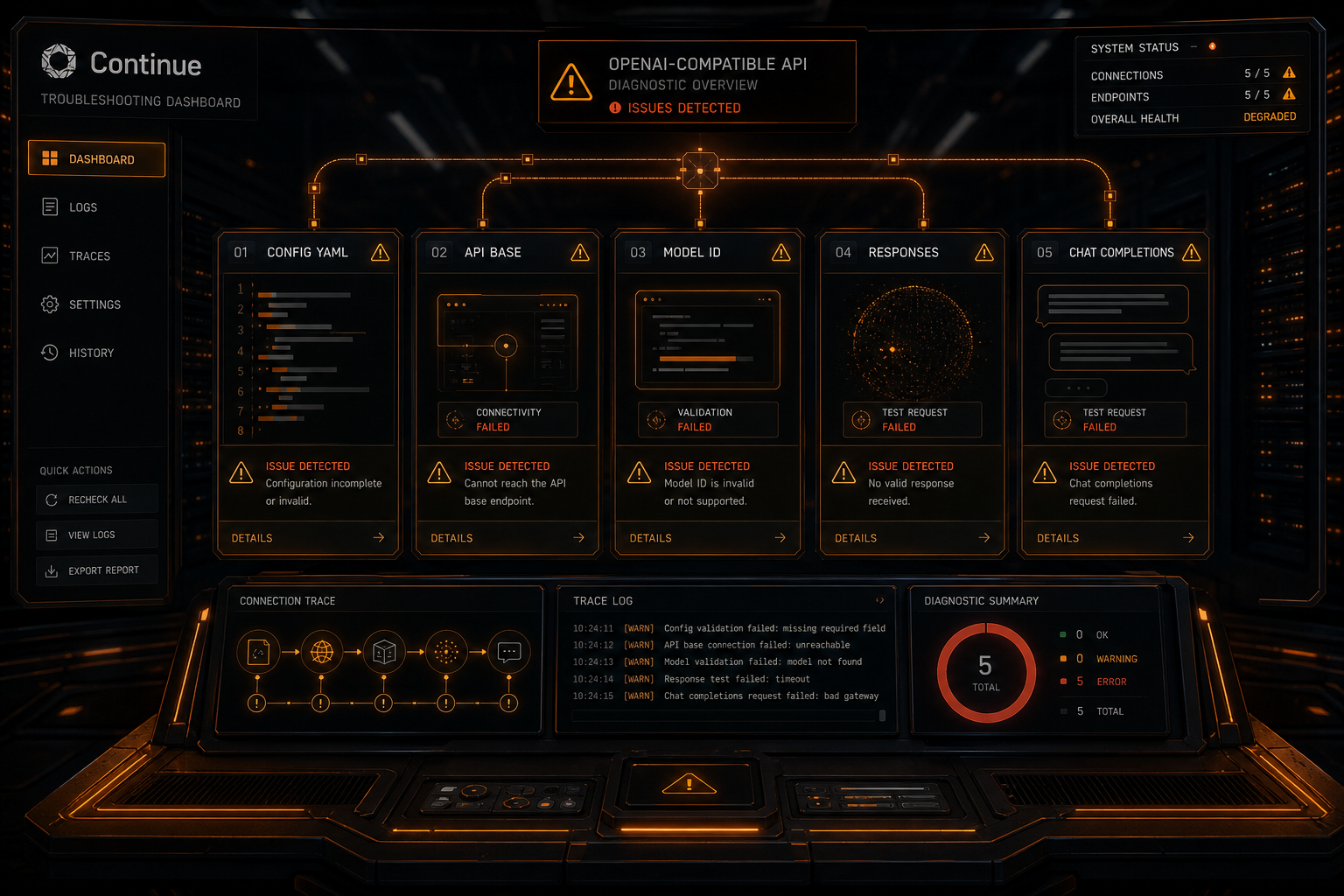
The Model Does Not Appear After Saving
Check that:
- the file is
~/.continue/config.yaml; - the Windows path is correct;
- YAML uses spaces consistently;
name,version, andschema: v1are present;modelsis a list;- you are editing Local Config.
401 or Invalid API Key
Confirm that the key belongs to the current apiBase, contains no extra spaces, and has access to the target model. Do not combine another provider's key with the Nbility Base URL.
404 or Model Not Found
Common causes include:
- using a marketing name instead of the model ID;
- omitting
/v1fromapiBase; - appending
/chat/completionstoapiBase; - Continue calling an unsupported
/responsesendpoint; - the key lacking model access.
Chat Works but Edit or Apply Fails
A text response does not validate the complete edit path. Try:
- adding the
editandapplyroles explicitly; - selecting a model with more reliable coding behavior;
- reducing the change scope;
- checking whether streaming output is truncated by the gateway;
- setting
useResponsesApi: falseand retesting.
Autocomplete Does Not Work
Confirm that at least one model has the autocomplete role, then test its latency and continuation behavior. An arbitrary chat model may not provide useful inline completion.
429, Timeout, or 5xx
A 429 usually means quota, concurrency, or rate limits. Timeouts can come from model latency, long context, or networking. A 5xx is more likely a gateway or upstream failure. Use bounded backoff and see the AI API error-code guide.
Is Continue Still a Good Choice?
If Continue 2.0 is already installed and stable in your workflow, it can keep serving as a locally controlled VS Code assistant. Its config.yaml, model roles, and compatible OpenAI provider remain practically useful.
For a new project, also consider:
- the official repository is now read-only;
- future models, APIs, and VS Code changes may lack maintenance;
- the team assumes more compatibility and security risk;
- a long-lived agent workflow may be better served by an actively maintained tool.
See Claude Code vs Codex vs Cursor vs OpenCode for several actively evolving directions. The decision involves maintenance, permissions, automation, and governance—not only API connectivity.
Use Nbility with Continue
To test different models behind one OpenAI-compatible endpoint, copy an exact Model ID from the Nbility model catalog and use:
models:
  - name: Nbility Model
    provider: openai
    model: YOUR_MODEL_ID
    apiBase: https://api.nbility.ai/v1
    apiKey: YOUR_API_KEY
    useResponsesApi: false
    roles:
      - chat
      - edit
      - apply
Prepare the file with placeholders first, then inject the real key through the local secret or environment-variable mechanism. Redacted compatibility errors can be submitted through Nbility support tickets, including the failed route, status code, and Model ID.
FAQ
Can Continue connect to any OpenAI-compatible API?
The openai provider and apiBase can point to a compatible endpoint, but feature support depends on the gateway's routes, streaming implementation, and model behavior.
Can I still use config.json?
The official documentation marks JSON configuration as deprecated. Use ~/.continue/config.yaml for new setups.
Why does /responses return 404?
Some compatible gateways implement only /chat/completions. Set useResponsesApi: false, then confirm that the model supports Chat Completions.
Can one model handle every role?
You can assign several roles, but Chat, Autocomplete, Embedding, and Rerank have different requirements. Role-specific models are usually more reliable.
Can I keep using Continue after maintenance ended?
The final installed release does not stop functioning because the repository became read-only. However, future compatibility, security fixes, and feature updates are no longer guaranteed.
Summary
The reliable Continue 2.0 setup is:
- install the VS Code extension and open Local Config;
- use
provider: openaiin~/.continue/config.yaml; - enter the exact model,
apiBase, and local secret; - assign appropriate roles such as
chat,edit, andapply; - test Chat, Edit, and Apply with a real code task;
- try
useResponsesApi: falsewhen a compatible gateway does not support Responses; - include the read-only repository status in long-term tool selection.
The YAML itself is straightforward. Protocol differences, role behavior, and future maintenance are the parts that deserve careful testing.