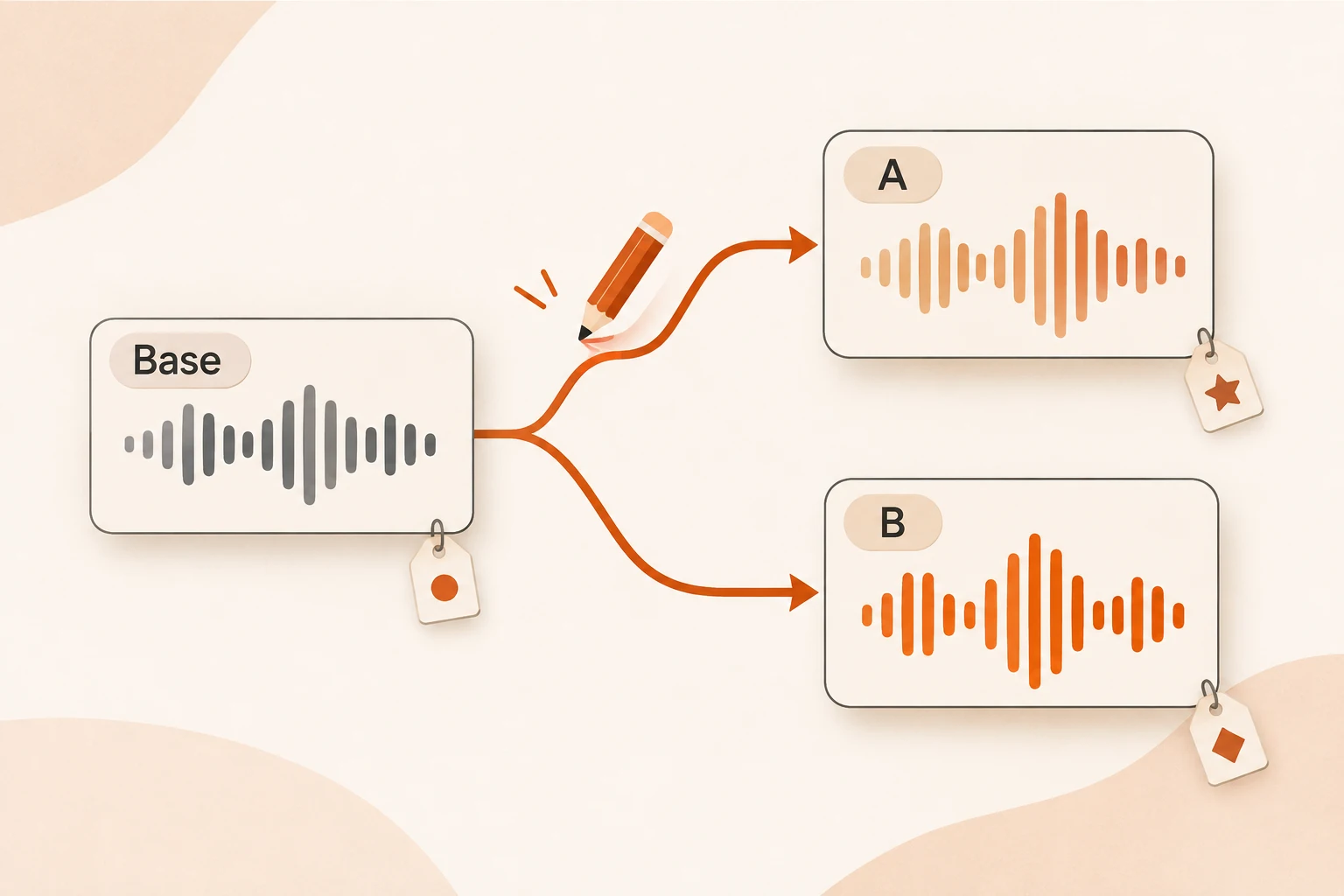
Gemini Omni 1.2 Makes Video Creation an Iterative Process
Plan conversational video edits with Omni 1.2 Flash while keeping generation, interpolation, extension, stored state, and media restrictions distinct.
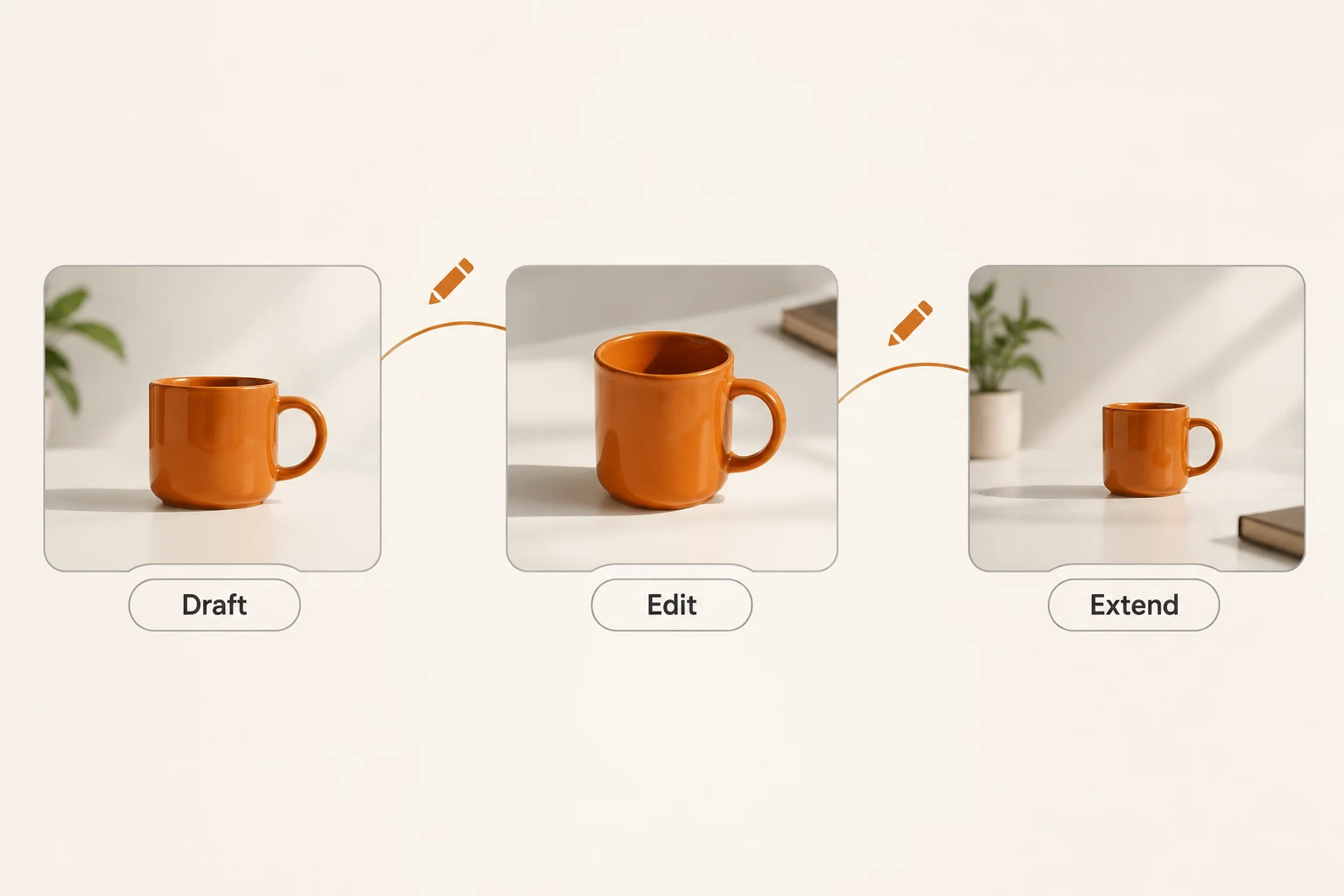
The first generated clip is often close: the subject and motion work, but the background needs changing or the ending needs another shot. Rewriting the whole request risks losing the parts you wanted to keep.
Gemini Omni 1.2 Flash, released to general availability on November 5, supports conversational editing and video extension. Making that workflow useful requires distinguishing its modes, retained state, and media restrictions.
We checked the release notes, model page, and full guide on November 11, 2026. This is a documented workflow proposal. We did not generate or edit a video, measure latency, or compare output quality. The illustrations are explanatory artwork, not model-result samples.
Match the duration to the operation
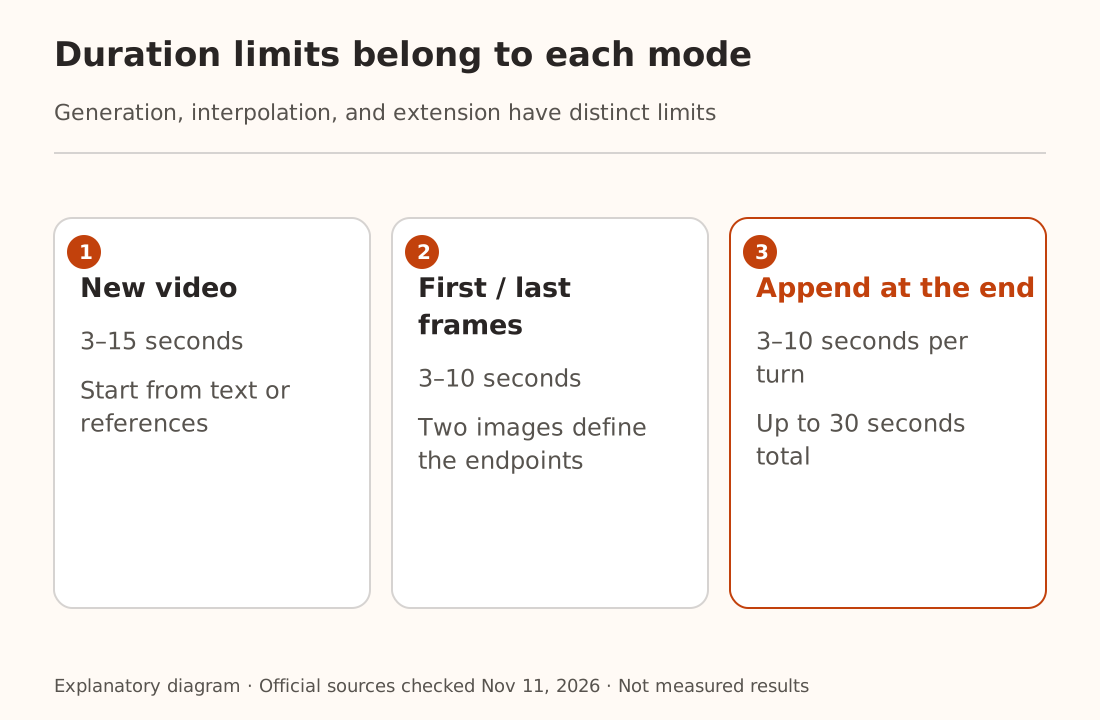
The current model ID is gemini-omni-1.2-flash. Its model page lists video with native audio, conversational editing, and output up to 4K. Individual modes have distinct limits.
| Operation | Documented duration | Boundary |
|---|---|---|
| Generate a new video | 3–15 seconds | The maximum does not apply to first/last-frame interpolation |
| Interpolate between a first and last frame | 3–10 seconds | Two endpoint images define the shot |
| Extend a video | Append 3–10 seconds per turn, up to 30 seconds total | Append at the end only; no prepending or middle insertion |
Editing inputs must be no longer than 15 seconds. A 30-second extension ceiling does not mean an arbitrary 30-second upload can be edited under the same rules.
Long assemblies, exact changes to middle frames, and subtitle tracks may still need a conventional editor. Decide whether the current operation is generation, revision, or extension before choosing its parameters.
Make three decisions around one product shot
For an original ceramic cup, start with consistent front and side references that you have rights to use. Then define a simple movement. This is a draft prompt sequence, not a record of generated output:
Draft: Generate a 6-second shot of an orange ceramic cup on a white table.
Move the camera slowly from the front toward the right.
Preserve the handle shape and cup proportions. Add no text.

Edit: Use the previous video and change only the background to soft light gray.
Keep the cup shape, placement, and camera movement unchanged.

Extend: Append 4 seconds at the end as the camera slowly comes to rest.
Keep the cup on the same table and introduce no new objects.
The draft checks subject and motion. Each later turn changes one inspectable condition. Review the handle shape, scene geometry, transition into the added segment, and unwanted audio separately.
The guide allows up to six reference images in 1.2, but the maximum is not a recommendation to use six. Contradictory references make failures harder to interpret. Start with a small, consistent set. For storyboard stills, see the Images API and image-saving workflow.
A follow-up edit depends on retained state
The official stateful example uses the Interactions API's previous_interaction_id to associate an edit with an earlier result. That service-side reference is not interchangeable with a local filename or the phrase “the last video.”
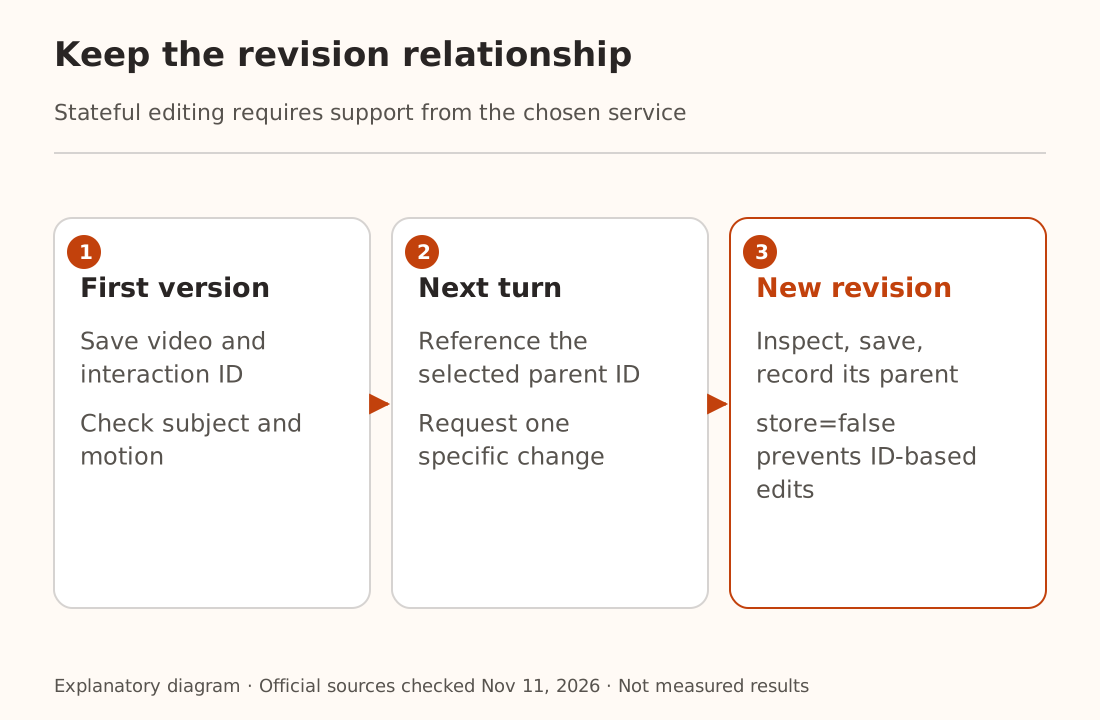
Keep interaction identifiers, prompts, outputs, and parent-version relationships in private task records. Once you choose version two, reference that version for subsequent changes. Branching from version one can otherwise look like lost edits.
The guide also lists store=false among options for faster synchronous generation and explicitly says that disabling storage prevents later editing of that generation through previous_interaction_id. A setting useful for one-shot generation can conflict with an iterative workflow.
A compatible service that generates one video does not necessarily implement stateful editing. Nbility's MiniMax H3 documentation describes a different model and task interface. Omni interaction fields and limits cannot simply be copied into it. Verify the chosen service's actual protocol coverage and account access first.
Extension uses the final ten seconds as context
The guide says extension conditions on the last ten seconds of the input while preserving earlier frames. If an important character or object appeared only before that window, restate it or supply a reference image.
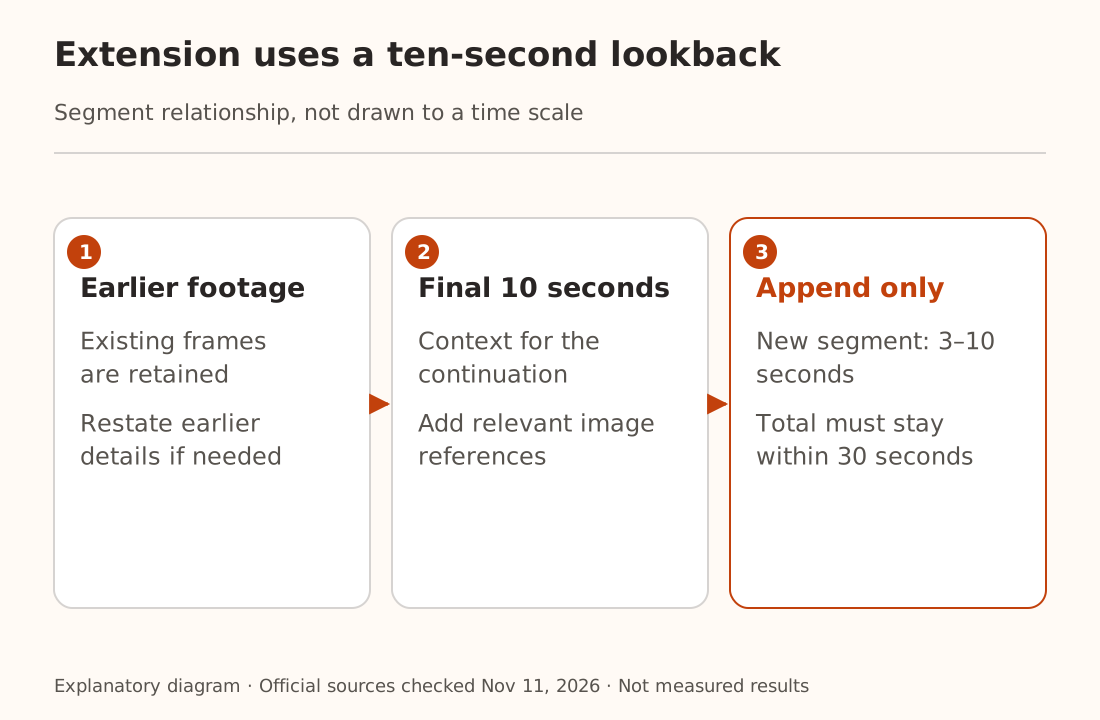
That affects shot planning. A feature shown only at the opening cannot be assumed to remain fully represented during extension. Keep a short continuity note covering subject, appearance, setting, and motion, and repeat the parts relevant to the current shot.
Native audio output has separate boundaries. The current guide does not support uploaded audio inputs or references, or voice editing. Extending spoken dialogue also differs between uploaded footage and model-generated multi-turn footage. Do not infer unrestricted dialogue editing from the presence of an audio output track.
Editing and extending uploaded videos is restricted in the EEA, Switzerland, and the UK; the guide treats model-generated footage separately. Check region, media, and account requirements before preparing a production workflow.
Continue from a version that passed inspection
Define concrete checks: subject consistency, completed action, no unintended elements, suitable audio, and acceptable joins. Save every selected file and its version relationship. If a submission outcome is unknown, inspect the existing task before creating another.
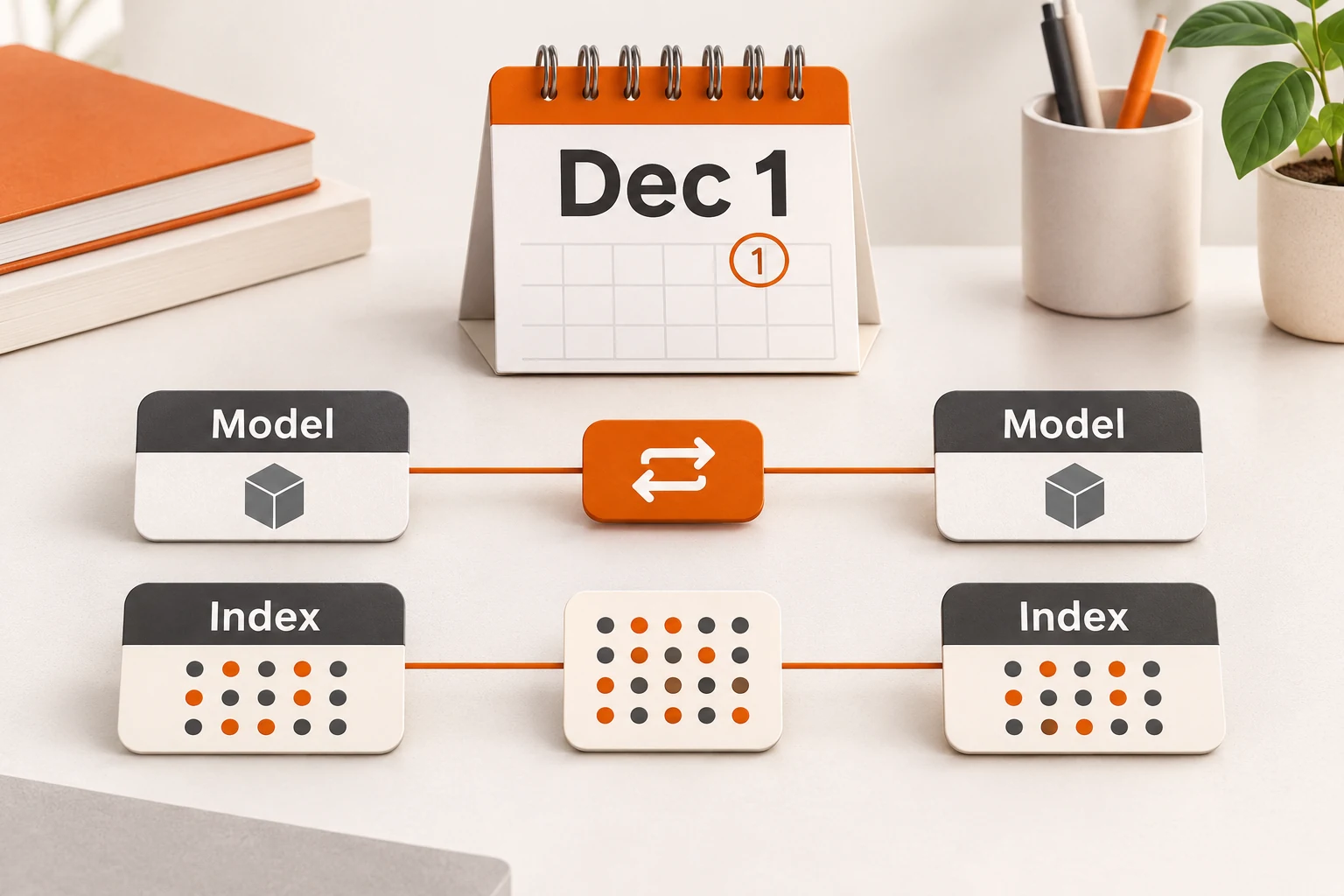
Google has also announced that gemini-omni-1.1-flash will route to 1.2 on December 3. That is still a future change at the time of writing. Applications using the old name should check model names and actual capabilities and plan verification before that date.
For Nbility, confirm the actual service in the model ID guide, then consult that model's interface documentation. Verify generation, editing, and extension individually before relying on the complete creative workflow.