Genie 4 creates worlds you can explore as they stream
Genie 4 streams a steerable audiovisual world. Learn where it fits, how live controls differ from video editing, and what to verify before building a prototype.
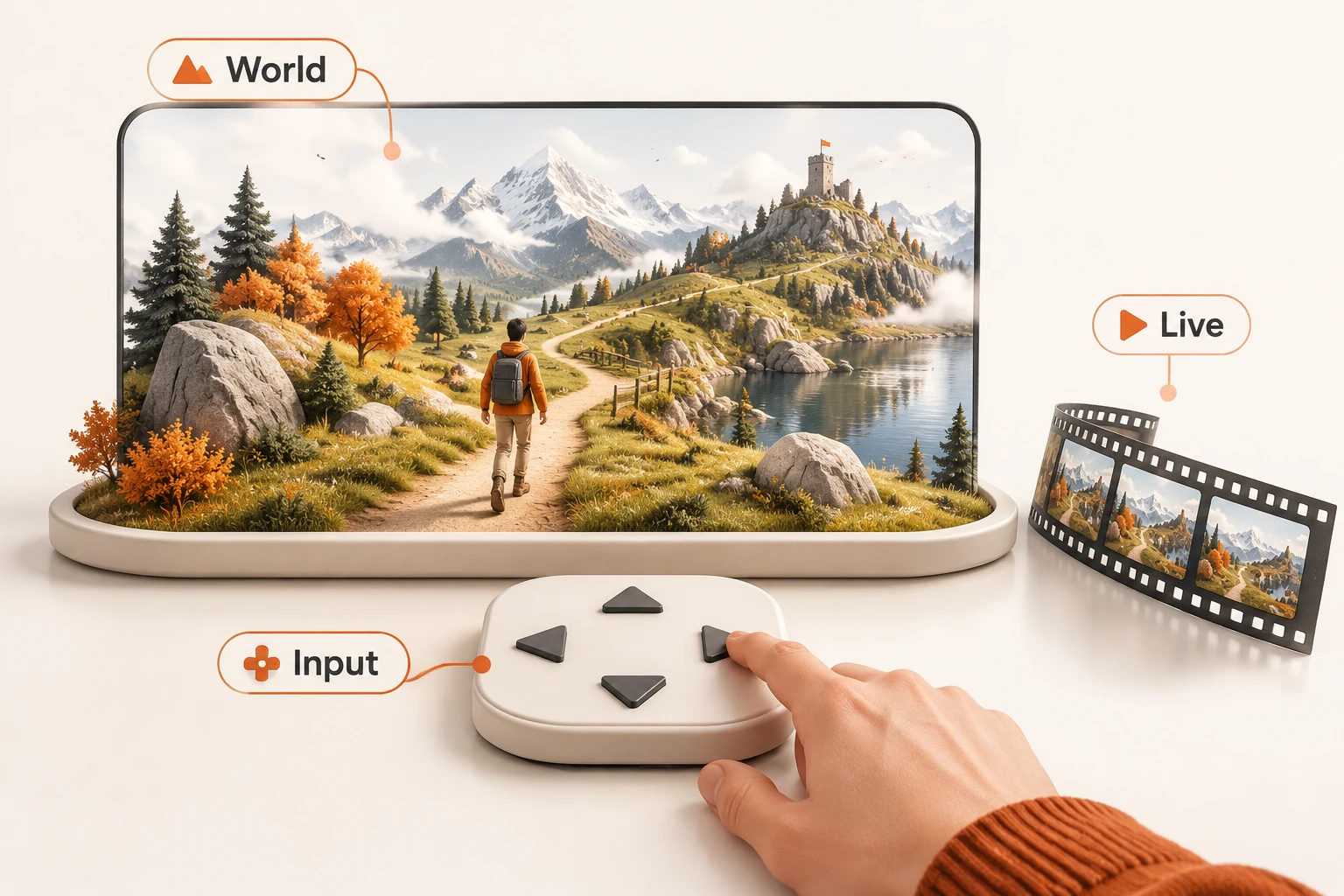
Genie 4 generates a world while you steer through it with a keyboard. That makes it useful for short exploratory scenes, interactive stories, and visual prototypes. A product clip that needs repeatable edits and a downloadable deliverable still belongs in an offline video workflow.
Google announced general availability of genie-4 on November 19, 2026, through the Interactions API on v1beta. The model's GA status does not remove the API version label. This article checked the release notes, model page, and interactive-world guide on November 22. We did not start a paid session; the illustrations explain mechanisms rather than show model output.
How does Genie 4 differ from video generation?
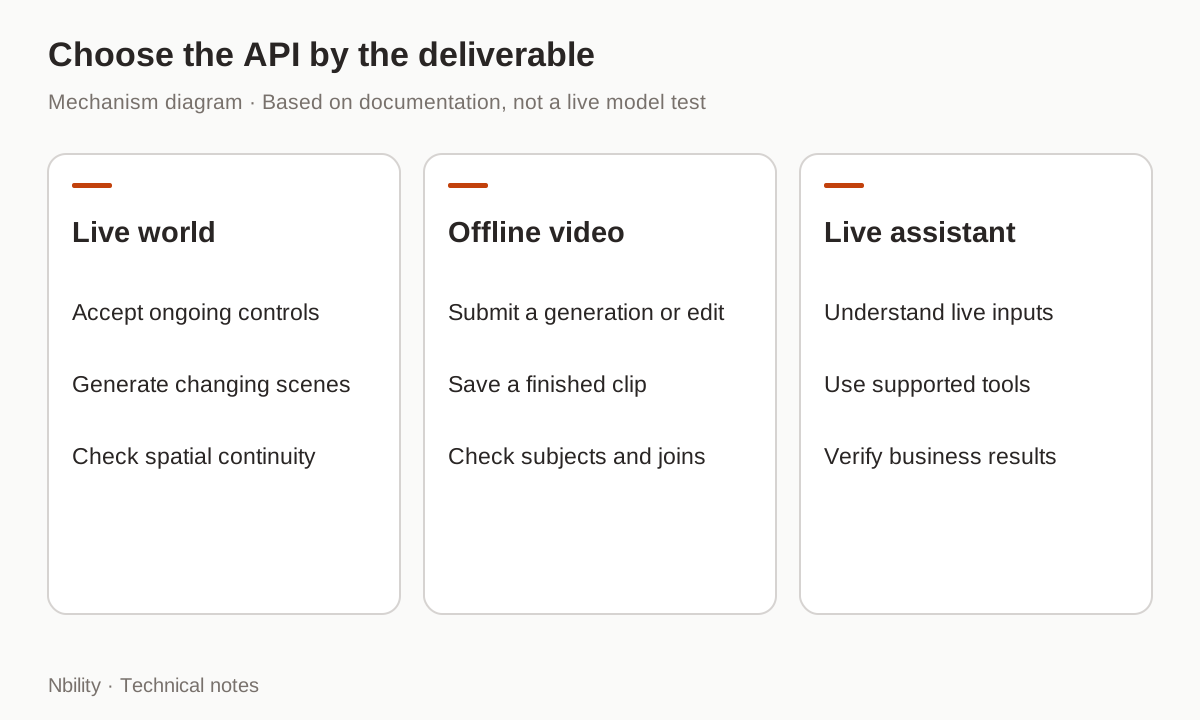
Genie 4 continuously accepts controls and streams the evolving scene. Offline video generation returns a clip for a submitted request.
| What you need | Better starting point | What to validate |
|---|---|---|
| Explore a scene as it changes | Genie 4 | Steering response and spatial continuity |
| Edit a product shot or extend its ending | A video editor such as Gemini Omni | Subject consistency, joins, and the saved clip |
| Listen to a microphone and use business tools | A real-time assistant API with those capabilities | Understanding, tool results, and speech |
Generated sound does not make Genie a voice assistant. It currently accepts neither live microphone nor webcam input and does not support function calling. Conversational video editing with Omni addresses a separate need: refining a result into a usable clip.
What should a first prototype prove?
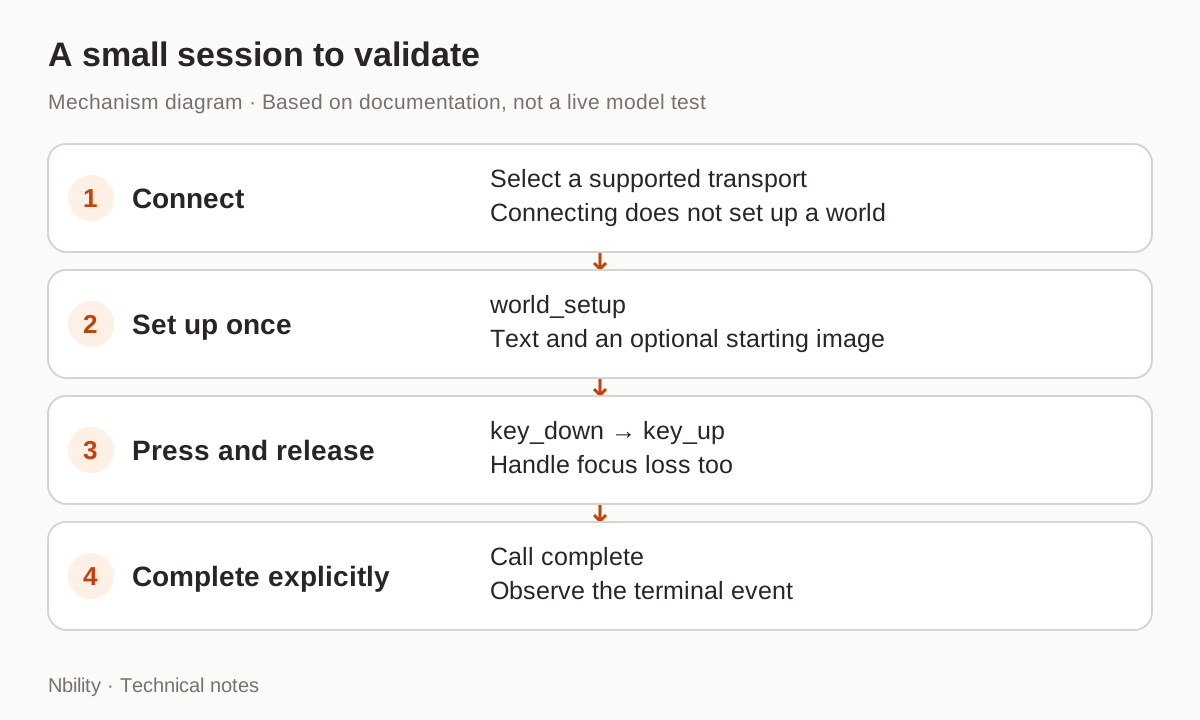
Start with one sequence: move forward, release the key, change the weather through text, and explicitly end the session.
An original greenhouse scene is enough: a central walkway, plant shelves on both sides, and quiet wind. Check movement before adding precise object counts, readable signs, or a complete game.
The protocol begins with exactly one world_setup. An optional starting image belongs in a top-level reference_image, alongside world_prompt. These are three separate events to send in order on an established connection; only their JSON syntax was checked here:
[
  {"event_type":"world_setup","world_prompt":{"text":"First-person view at a greenhouse entrance. A central walkway, plant shelves on either side, soft wind sounds."}},
  {"event_type":"user_action","action":"key_down","input":"key_w"},
  {"event_type":"user_action","action":"key_up","input":"key_w"}
]
Do not send the array as one event. A held key continues applying until key_up, so account for focus loss as well as normal releases. WASD and arrow keys have trained movement and camera behavior. The presence of space or key_e in a wire enum does not implement jumping or opening a door.
Should the connection use WebRTC or WebSocket?
WebRTC suits direct browser interaction; WebSocket suits backend scripts, frame capture, and custom media processing.
WebRTC delivers media tracks. WebSocket emits step.delta events containing Base64 JPEG frames and 48 kHz, signed 16-bit little-endian stereo PCM. Those audio bytes are not an MP3, and a JPEG frame is not a saved video. Streaming audio playback explains why bytes, encoding, and containers must be treated separately.
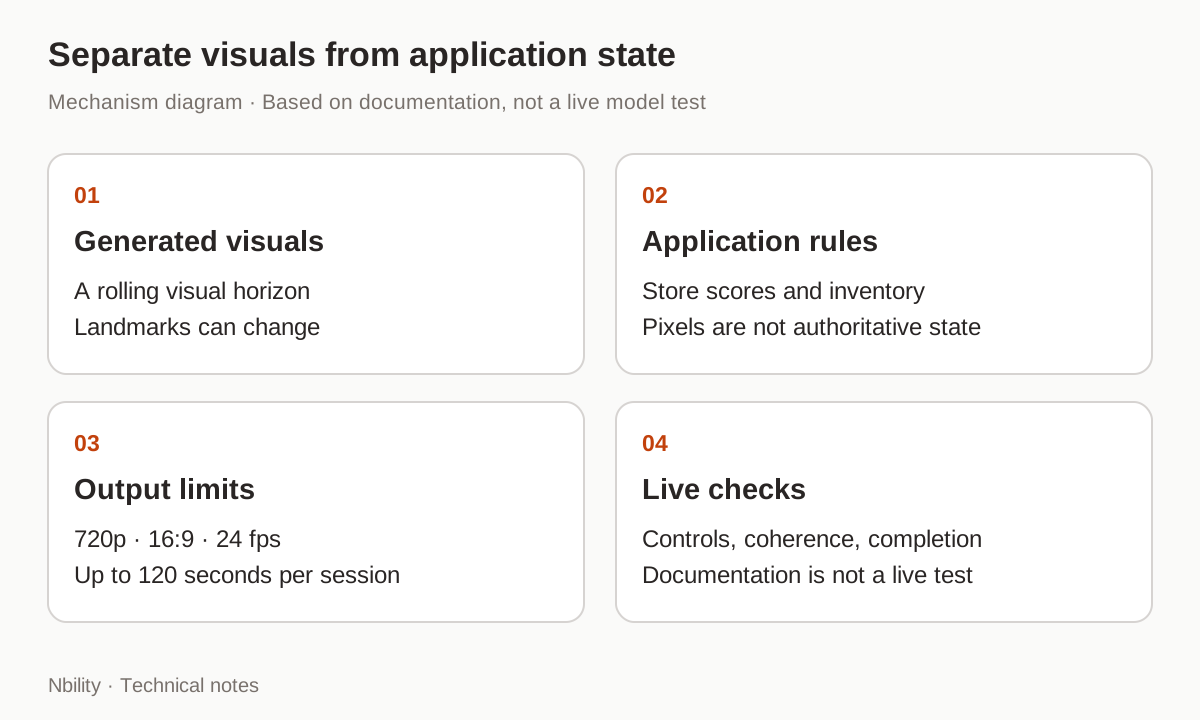
Output is fixed at 1280×720, 16:9, and 24 fps. A prompt does not enable native portrait output. For WebRTC, the guide recommends keeping the starting JPEG under 48 KB so Base64 and JSON fit the data-channel message limit. Larger seed images are a reason to consider WebSocket.
A browser application should follow the official backend-issued, interaction-scoped temporary-token flow. Keep the long-lived key on the backend. Token creation, browser connectivity, and access eligibility were not tested here; the event sample is not a complete deployable application.
Why can a landmark change when you look back?
Genie maintains a rolling visual horizon rather than a persistent 3D scene graph. Objects, doors, and signs may drift after leaving the view.
The documented session cap is 120 seconds, with warnings about coherence over longer runs. That does not guarantee a stable first 90 seconds. Keyboard movement and text-driven scene changes also follow different response paths, so a single latency claim would be misleading.
Keep the first experience short and exploratory. If inventory, scores, door states, or exact counts matter, store and validate them in application logic. Generated imagery cannot establish the state of a real business operation or a deterministic game rule.
Does closing the page stop generation?
A local disconnect is not confirmation that server generation has stopped. The guide distinguishes complete(), cancel(), and detach(): the first two end or abort generation; the last disconnects locally.
Session resumption is unsupported, so detach() should not become a pause button. Complete normally and observe interaction.completed; handle failures through the SDK's cancellation path and retain enough state to investigate. A page-close callback alone is not reliable lifecycle management. Video waiting and cancellation discusses the same distinction between page state and remote work, although its endpoints are different.
Gateway compatibility must also be checked per capability. Nbility's Gemini compatibility documentation describes generateContent; it does not establish support for Genie's interactions.connect. Validate a small official session, then verify the real-time transport offered by your chosen service.